

The Stability AI Stable Audio 2.5 Partner node allows you to use Stability AI’s latest audio generation model to create high-quality music through text prompts, audio transformations, and audio inpainting capabilities. Stable Audio 2.5 is designed for enterprise use, featuring improved musical structure, better prompt adherence, and the ability to generate minutes-long compositions in seconds. The model offers three main workflows: Text-to-Audio for generating music from descriptions, Audio-to-Audio for transforming existing audio into new compositions, and Audio Inpainting for completing or extending existing tracks. Trained exclusively on licensed audio, Stable Audio 2.5 is commercially safe and perfect for advertisers, game studios, and content creators who need professional-quality audio generation with enterprise-grade reliability.Documentation Index
Fetch the complete documentation index at: https://dripart-mintlify-e28287af.mintlify.app/llms.txt
Use this file to discover all available pages before exploring further.
Text-to-Audio Workflow
For text-to-audio, you can generate audio through text prompts. You need to describe the music you want to generate.Download JSON Workflow
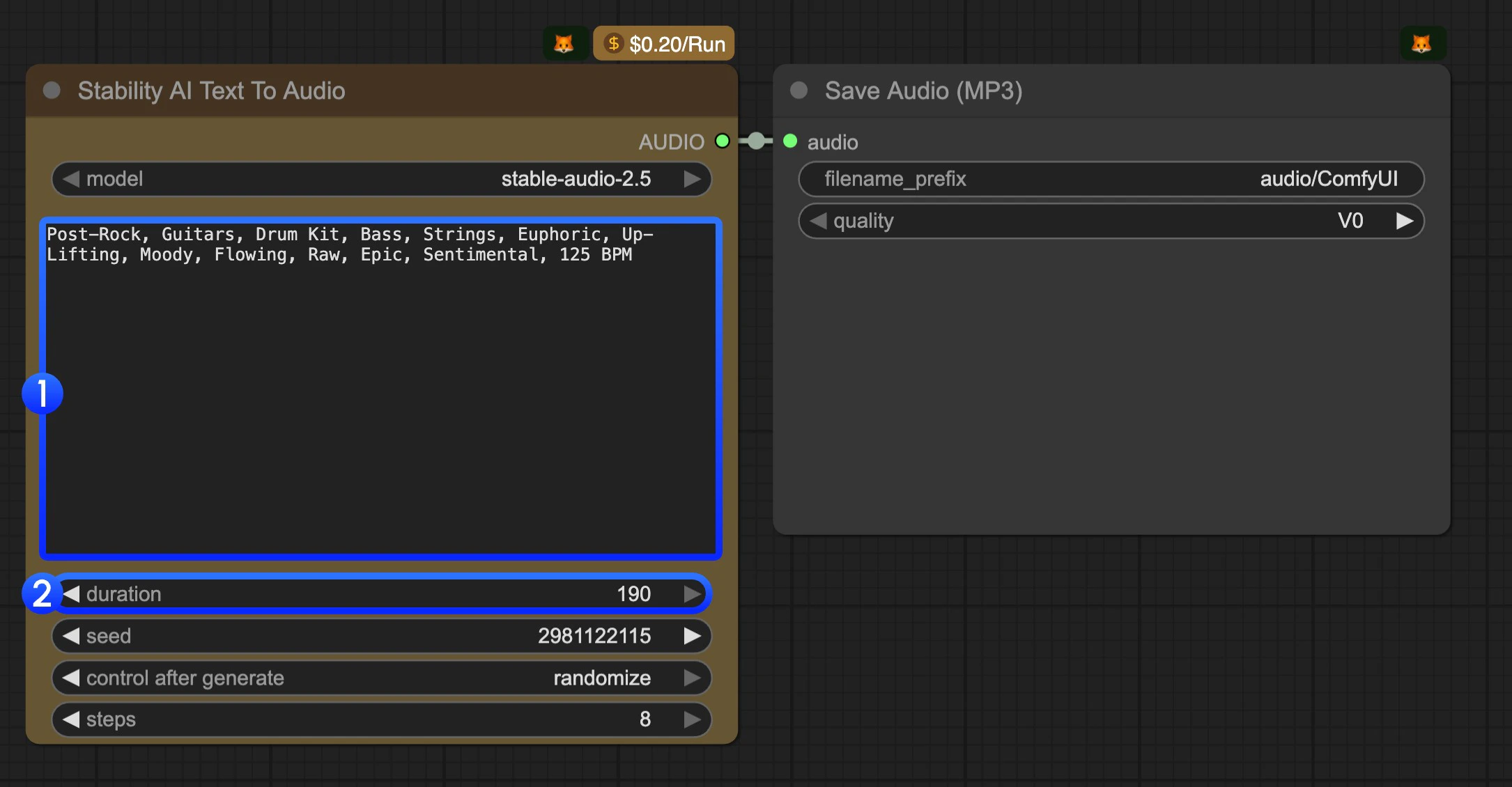
- Modify the text prompt. You should use keywords to describe the music you want to generate.
- (Optional) Modify the
durationparameter. It’s190by default. - Click the
Runbutton or use the shortcutCtrl(cmd) + Enterto execute the audio generation. The audio will be saved to theComfyUI/output/audiodirectory.
Audio-to-Audio Workflow
Audio-to-audio is basically music re-sampling. You can use it to generate new music from a given piece of music, or you can just hum a melody, and then the model will generate new music based on the input audio.Download JSON Workflow
Download Input Audio
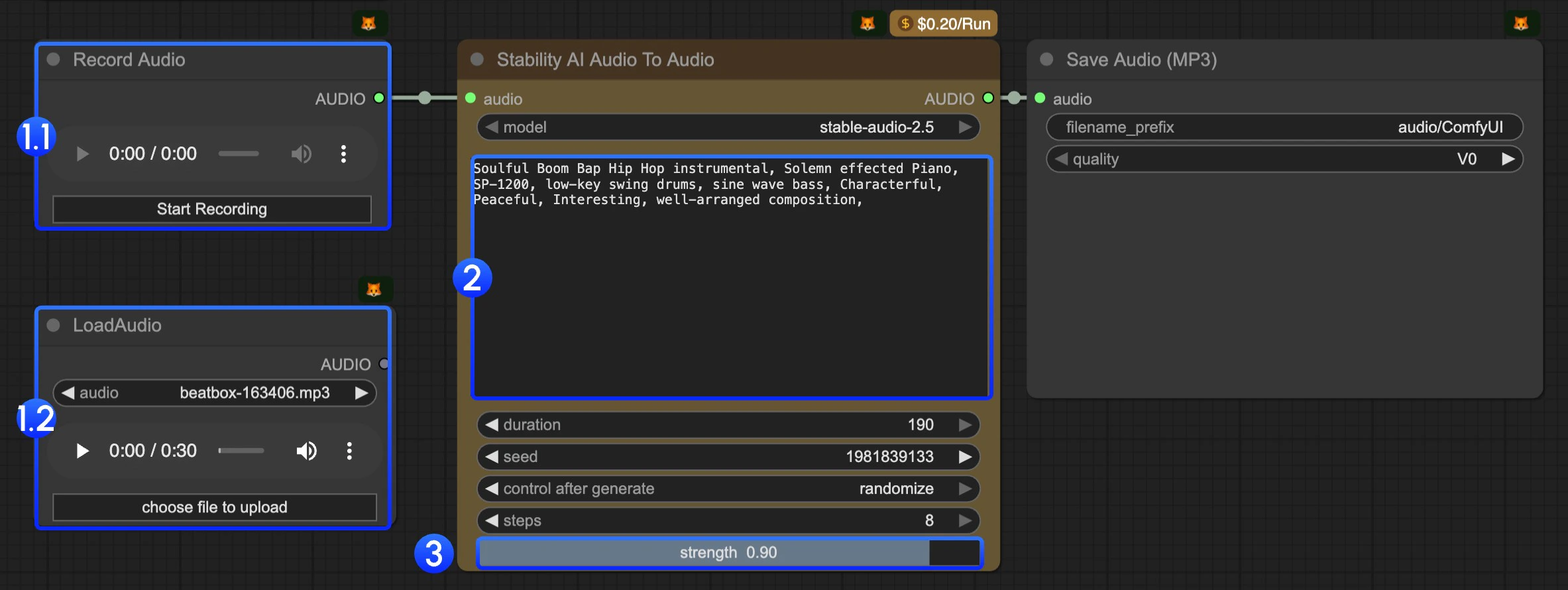
- In this workflow, we have provided two nodes for you to input the audio(at least 6 seconds) you want to edit:
- 1.1
Record Audionode: You can use it to record any of your music ideas, such as a hummed melody. It should be at least 6 seconds. - 1.2
LoadAudionode: You can use it to upload audio that you want to be used in this workflow.
- 1.1
- Modify the text prompt. You should use keywords to describe the music you want to generate.
- The
strengthparameter is used to control the difference from the original audio. The lower the value, the more similar the generated audio will be to the original audio. - Click the
Runbutton or use the shortcutCtrl(cmd) + Enterto execute the audio generation. The audio will be saved to theComfyUI/output/audiodirectory.
Audio Inpainting Workflow
Audio inpainting is used to complete or extend existing tracks. You can use it to complete the missing part of music or extend the music to a longer duration. You need to set where you want to start and end the inpainting.Download JSON Workflow
Download Input Audio
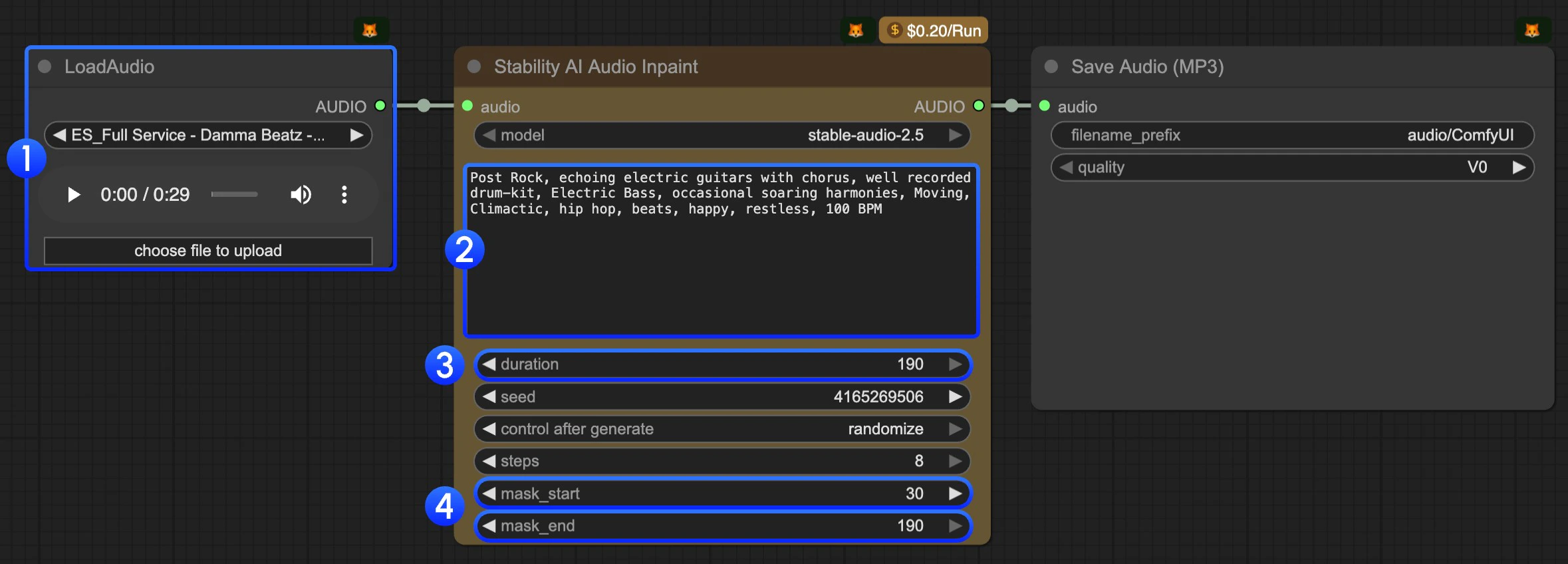
- Upload audio to the
LoadAudionode. - Modify the text prompt. You should use keywords to describe the music you want to generate.
- (Optional) Modify the
durationparameter. It’s190by default. - (Important) Modify the
mask_startandmask_endparameters. You need to set where you want to start and end the inpainting. - Click the
Runbutton or use the shortcutCtrl(cmd) + Enterto execute the audio generation. The audio will be saved to theComfyUI/output/audiodirectory.