

The Luma Text to Image node allows you to generate high-quality images from text prompts using Luma AI’s advanced technology, capable of creating photorealistic content and artistic style images. In this guide, we’ll show you how to set up workflows using this node for text-to-image generation.Documentation Index
Fetch the complete documentation index at: https://dripart-mintlify-e28287af.mintlify.app/llms.txt
Use this file to discover all available pages before exploring further.
Luma Text to Image Node Documentation
You can refer to the following documentation for detailed parameter settings:Luma Text to Image Node Documentation
Luma Text to Image API Node Documentation
Luma Reference Node Documentation
Luma Reference API Node Documentation
Luma Text to Image API Node Workflow
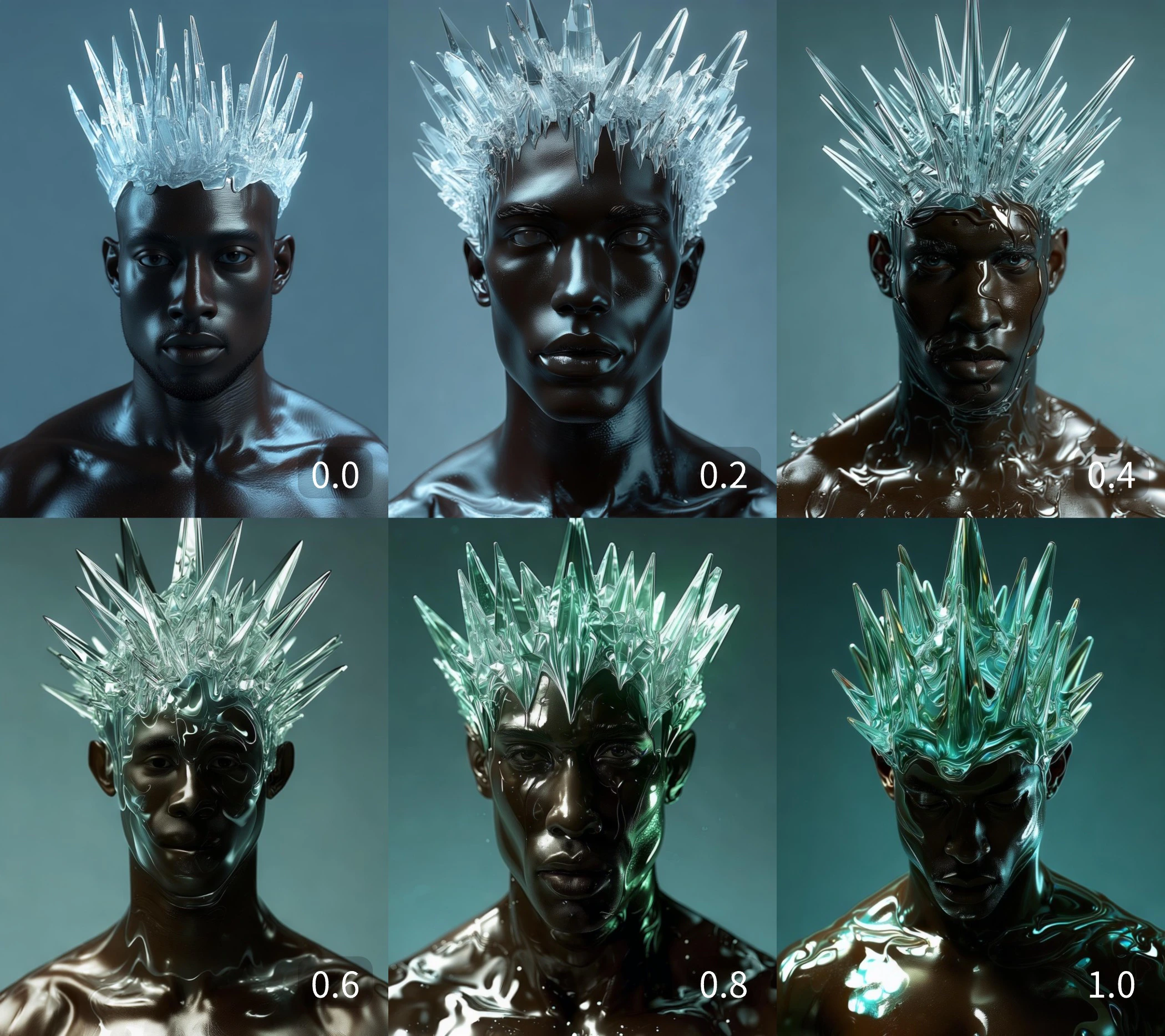
When theLuma Text to Image node is used without any image inputs, it functions as a text-to-image workflow. In this guide, we’ve created examples using style_image and image_luma_ref to showcase Luma AI’s excellent image processing capabilities.
1. Download Workflow Files
The workflow information is included in the metadata of the image below. Download and drag it into ComfyUI to load the workflow.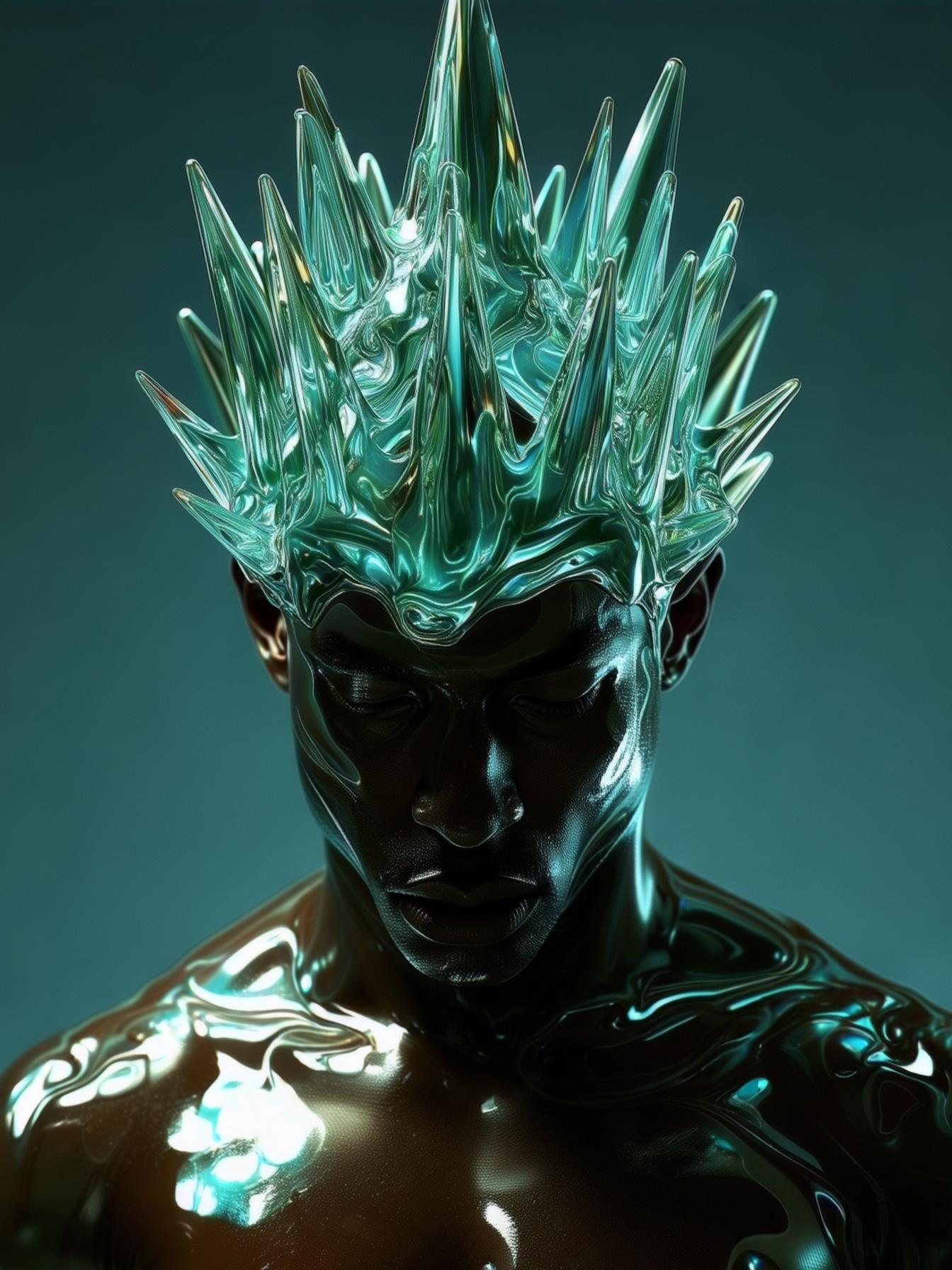 Please download these images for input:
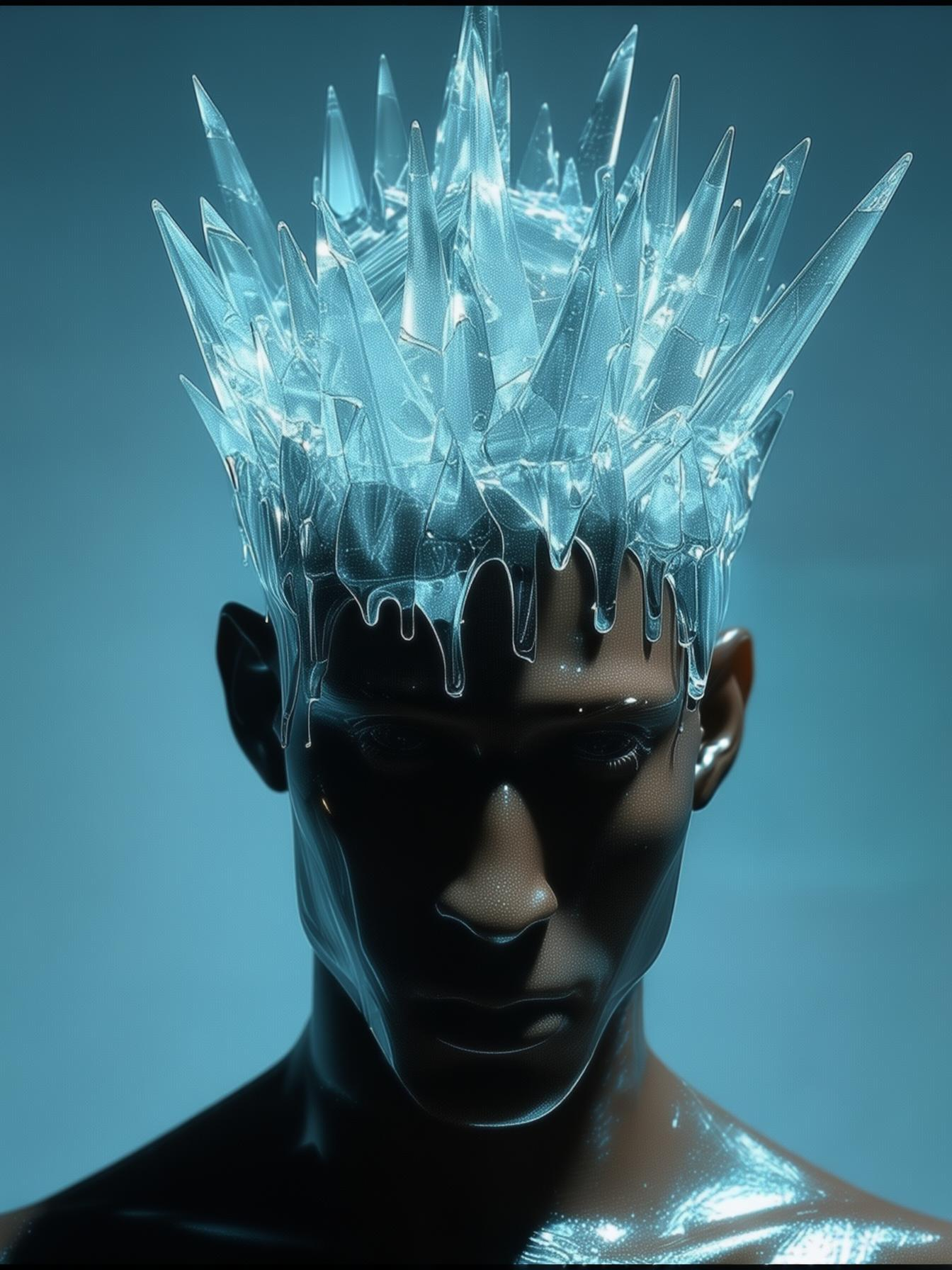
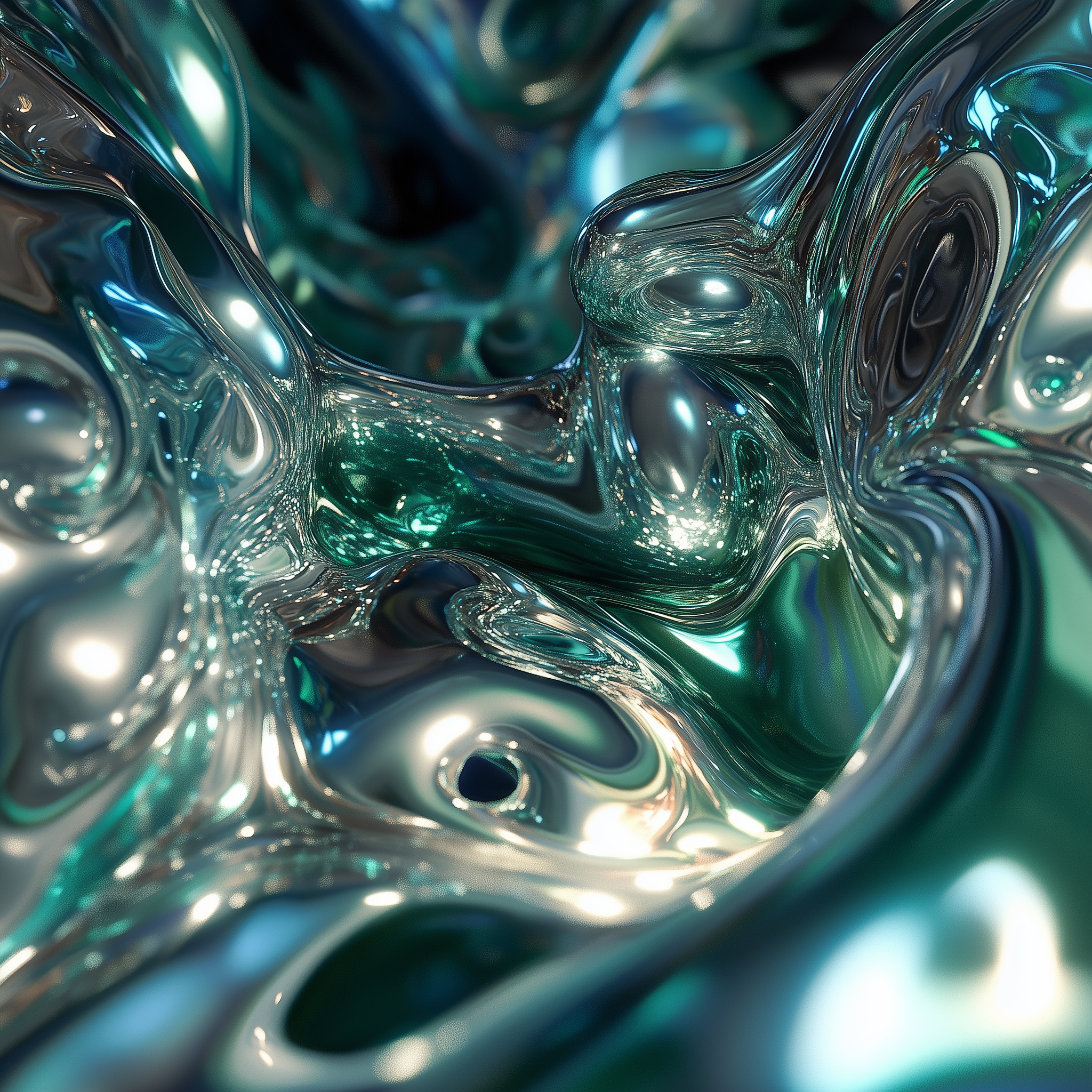
2. Follow Steps to Run the Workflow
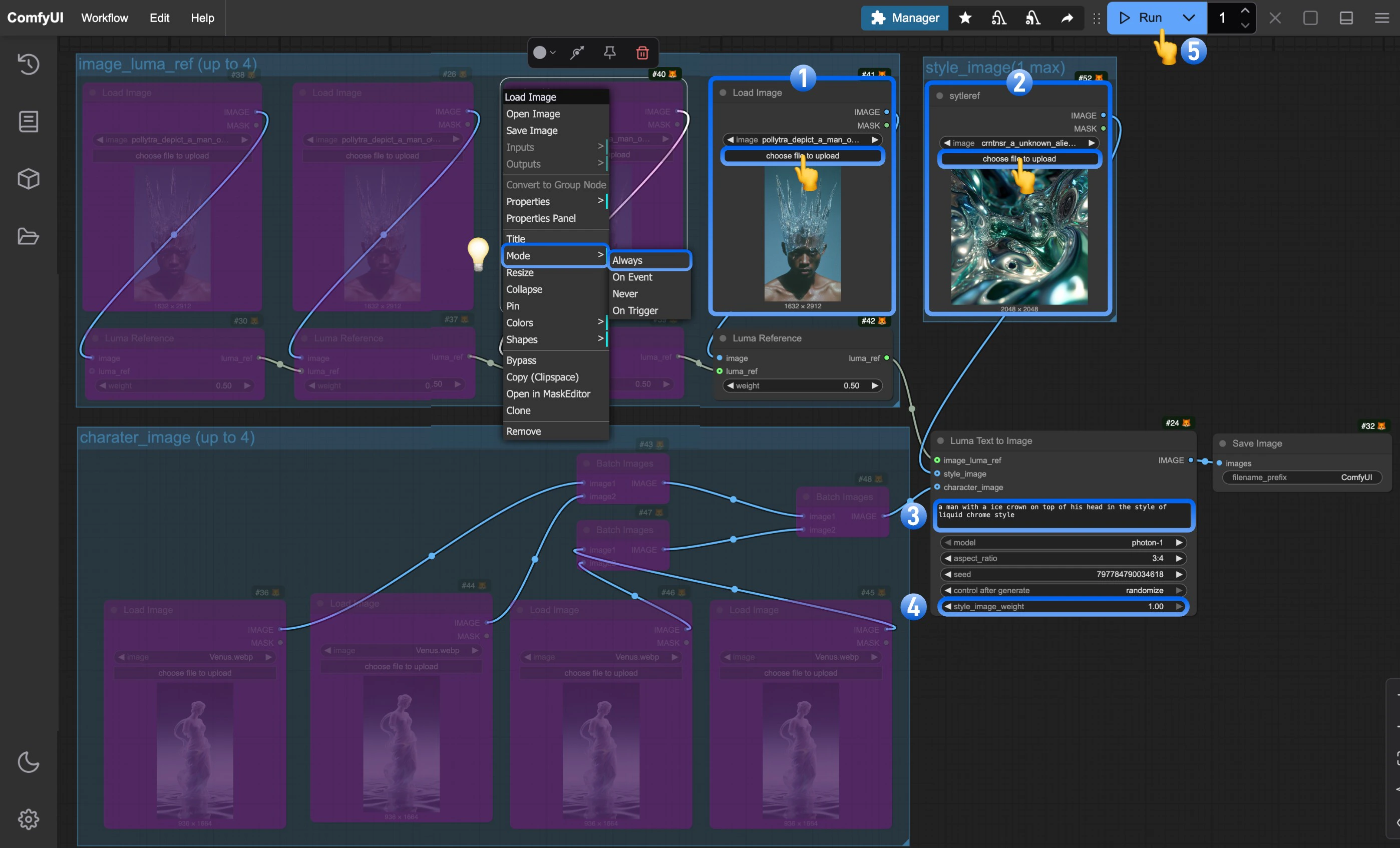
- Upload the reference image in the
Load imagenode - Upload the style reference image in the
Load image (renamed to styleref)node - (Optional) Modify the prompts in the
Luma Text to Imagenode - (Optional) Adjust the
style_image_weightto control the style reference image’s influence - Click the
Runbutton or use the shortcutCtrl(cmd) + Enterto generate the image - After the API returns results, view the generated image in the
Save Imagenode. Images are saved to theComfyUI/output/directory
3. Additional Notes
- The node allows up to 4 reference images and character references simultaneously.
- To enable multiple image inputs, right-click on the purple “Bypassed” nodes and set their
modetoalways