

Seedance 2.0 is ByteDance’s next-generation multimodal video generation model, now available inside ComfyUI. It accepts text, images, video, and audio as unified inputs and produces high-quality video with synced audio, consistent characters, and cinematic camera motion in a single pass.Documentation Index
Fetch the complete documentation index at: https://dripart-mintlify-e28287af.mintlify.app/llms.txt
Use this file to discover all available pages before exploring further.
Key capabilities
- Multimodal in — Prompt with text plus images, video, and audio
- Audio-video sync — Generate video and audio together
- Directing control — Camera moves and shot pacing stay controllable
- Consistency — Keep characters and scenes stable across a clip
- Editing + extend — Edit footage or extend clips without starting over
Available workflows
Text to video (T2V)
Generate a video from a text prompt, with Seedance 2.0 handling scene, motion, and pacing.Run Text-to-Video on Cloud
Try the Text-to-Video workflow instantly on Comfy Cloud.
Download Text-to-Video workflow
Download the workflow JSON.
Reference to video (R2V)
Use reference images, video, or audio to guide look, motion, and rhythm while keeping results coherent.Run Reference-to-Video on Cloud
Try the Reference-to-Video workflow instantly on Comfy Cloud.
Download Reference-to-Video workflow
Download the workflow JSON.
First-last-frame to video (FLF2V)
Provide a starting frame and ending frame, and Seedance 2.0 generates the motion and transitions between them.Run FLF2V on Cloud
Try the First-Last-Frame-to-Video workflow instantly on Comfy Cloud.
Download FLF2V workflow
Download the workflow JSON.
Using real-person and AI-generated portraits in ComfyUI for Seedance 2.0
Seedance 2.0 supports both real-person portraits (imagery of actual people you use as likeness or on-camera reference) and AI-generated portraits (fictional on-screen subjects produced by AI, not depicting a specific real individual). Which path you use determines whether you need ByteDance liveness and identity checks.| AI-generated portrait | Real-person portrait | |
|---|---|---|
| What it refers to | The subject looks like an AI-synthesized character; it must not correspond to an identifiable natural person | You use portrait or appearance footage of a real person |
| Identity verification | No extra check | One-time ByteDance liveness (through ByteDance Create Image/Video Asset) |
| Workflow | Any standard Seedance 2.0 workflow (T2V, R2V, FLF2V) | Seedance 2.0 Real Human workflow with the ByteDance Create Image/Video Asset node |
AI-generated portrait
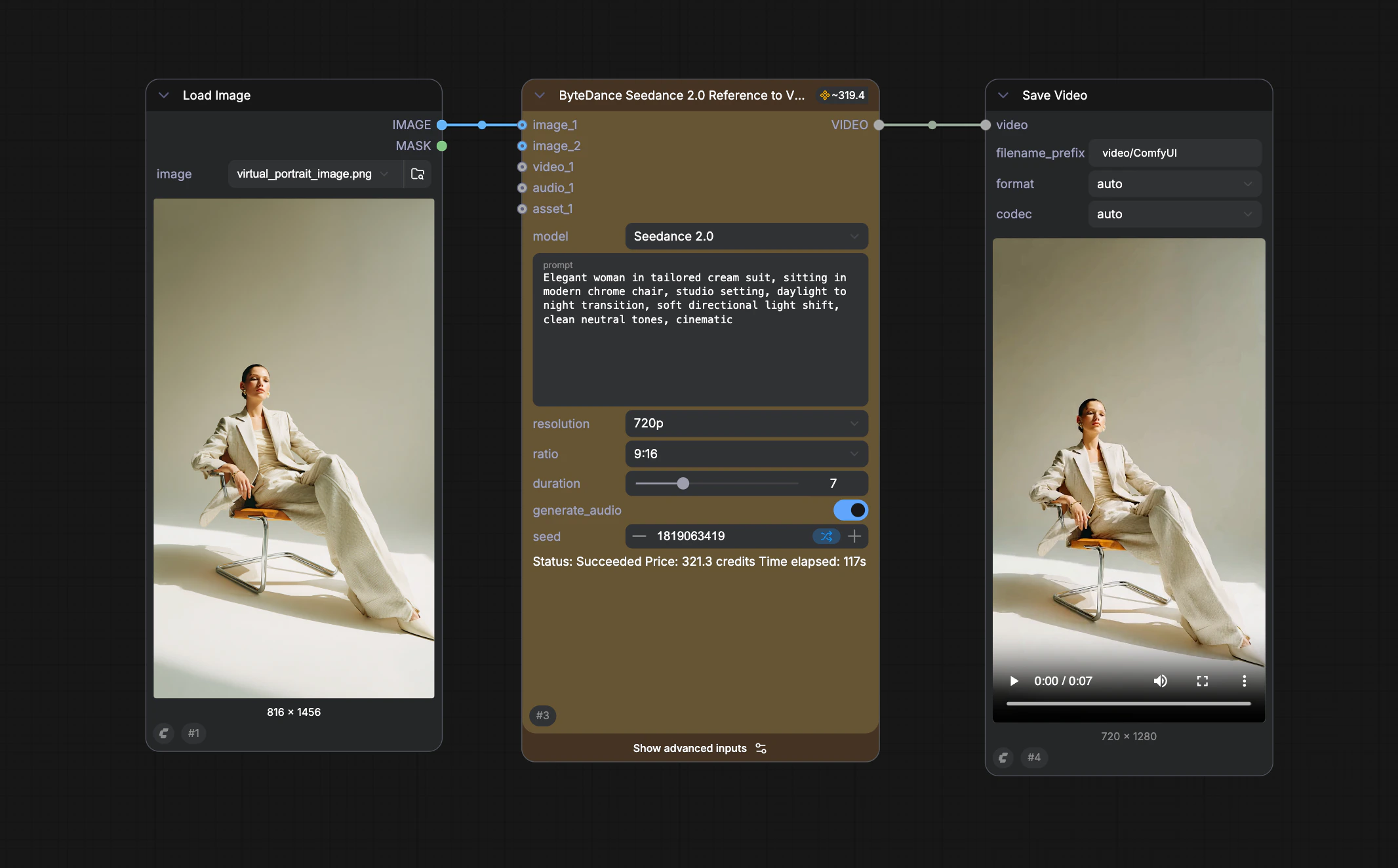
Real-person portrait
Use the Real Human workflow (requires ByteDance Create Image/Video Asset): real likeness needs one liveness verification to deter impersonation and unauthorized use of someone’s likeness, and to comply with evolving AI transparency requirements. First use (verification required)- Upload portrait imagery via ByteDance Create Image/Video Asset.
- Run the workflow — a verification link is generated.
- Open the link on your phone or browser and finish liveness (typically under ~30 seconds).
- After verification succeeds you receive two IDs:
- Group ID — the verified individual; retain it when uploading the same person again.
- Asset ID — bound to this portrait; connect it for video generation and reuse across runs.
- Upload a new photo or video of that person.
- Enter the saved Group ID on ByteDance Create Image/Video Asset.
- The system compares the new face data with the original verification record; when it matches, the new asset activates automatically.
Seedance 2.0 Real Human
Full walkthrough, verification flow, and Real Human workflow templates.