FLUX 1.1 Pro Ultra is a high-performance AI image generation tool by BlackForestLabs, featuring ultra-high resolution and efficient generation capabilities. It supports up to 4MP resolution (4x the standard version) while keeping single image generation time under 10 seconds - 2.5x faster than similar high-resolution models. The tool offers two core modes:Documentation Index
Fetch the complete documentation index at: https://dripart-mintlify-e28287af.mintlify.app/llms.txt
Use this file to discover all available pages before exploring further.
- Ultra Mode: Designed for high-resolution needs, perfect for advertising and e-commerce where detail magnification is important. It accurately reflects prompts while maintaining generation speed.
- Raw Mode: Focuses on natural realism, optimizing skin tones, lighting, and landscape details. Reduces the “AI look” and is ideal for photography and realistic style creation.
- Flux 1.1 Pro Text-to-Image
- Flux 1.1 Pro Image-to-Image (Remix)
Flux 1.1 Pro Ultra Image Node Documentation
Check the following documentation for detailed node parameter settings: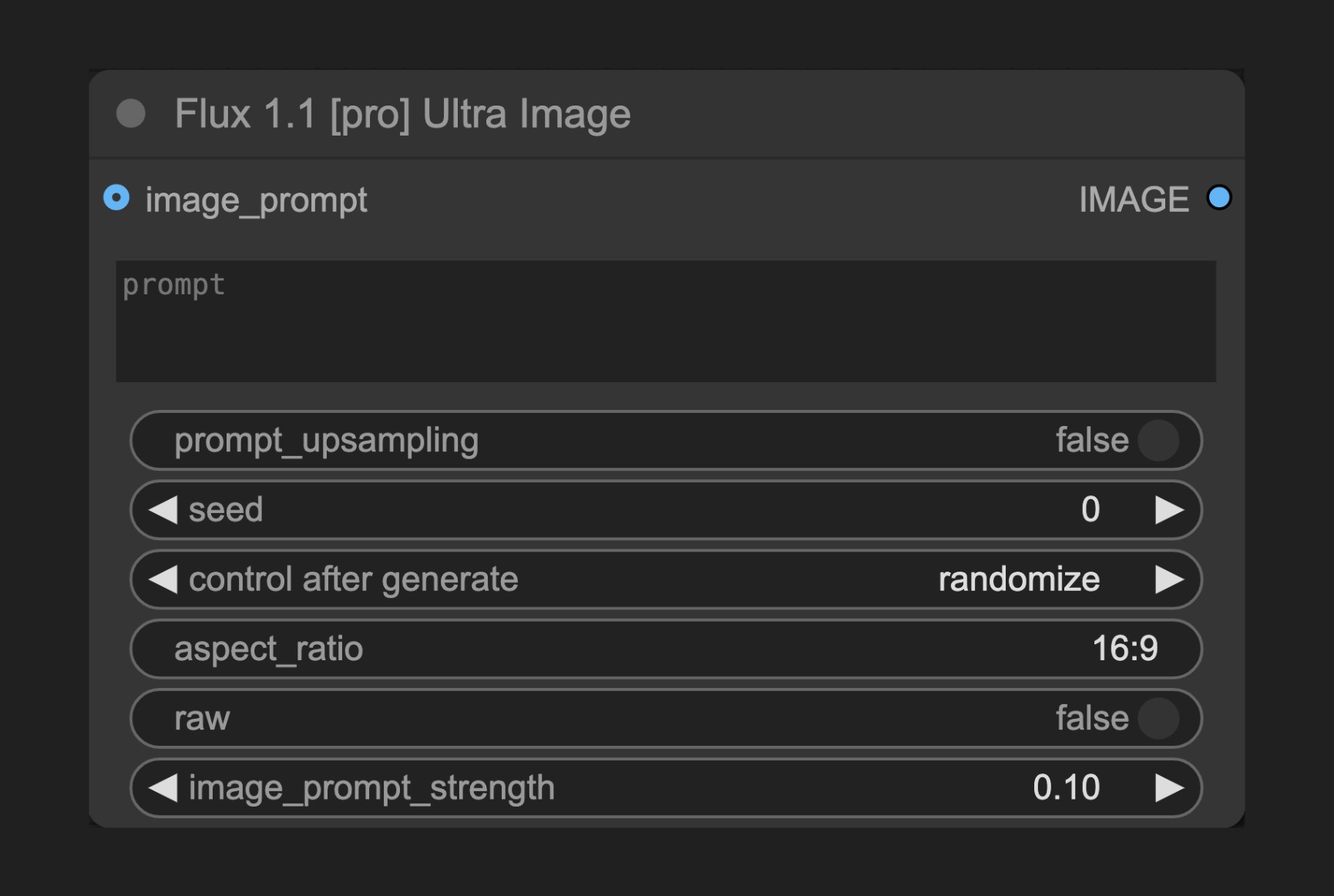
Flux 1.1 [pro] Text-to-Image Tutorial
1. Download Workflow File
Download and drag the following file into ComfyUI to load the workflow:
2. Complete the Workflow Steps
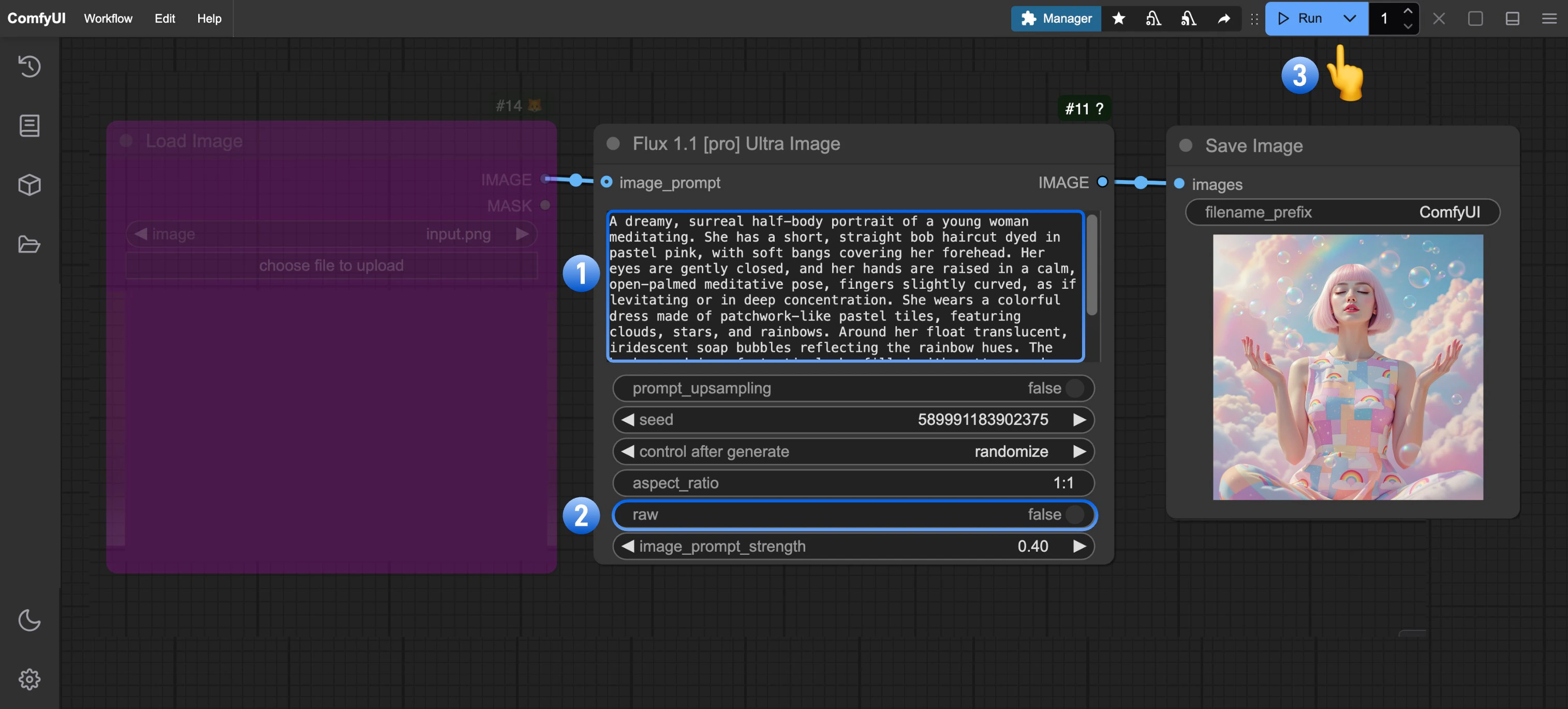
- (Optional) Modify the prompt in the
Flux 1.1 [pro] Ultra Imagenode - (Optional) Set
rawparameter tofalsefor more realistic output - Click
Runor use shortcutCtrl(cmd) + Enterto generate the image - After the API returns results, view the generated image in the
Save Imagenode. Images are saved to theComfyUI/output/directory
Flux 1.1[pro] Image-to-Image Tutorial
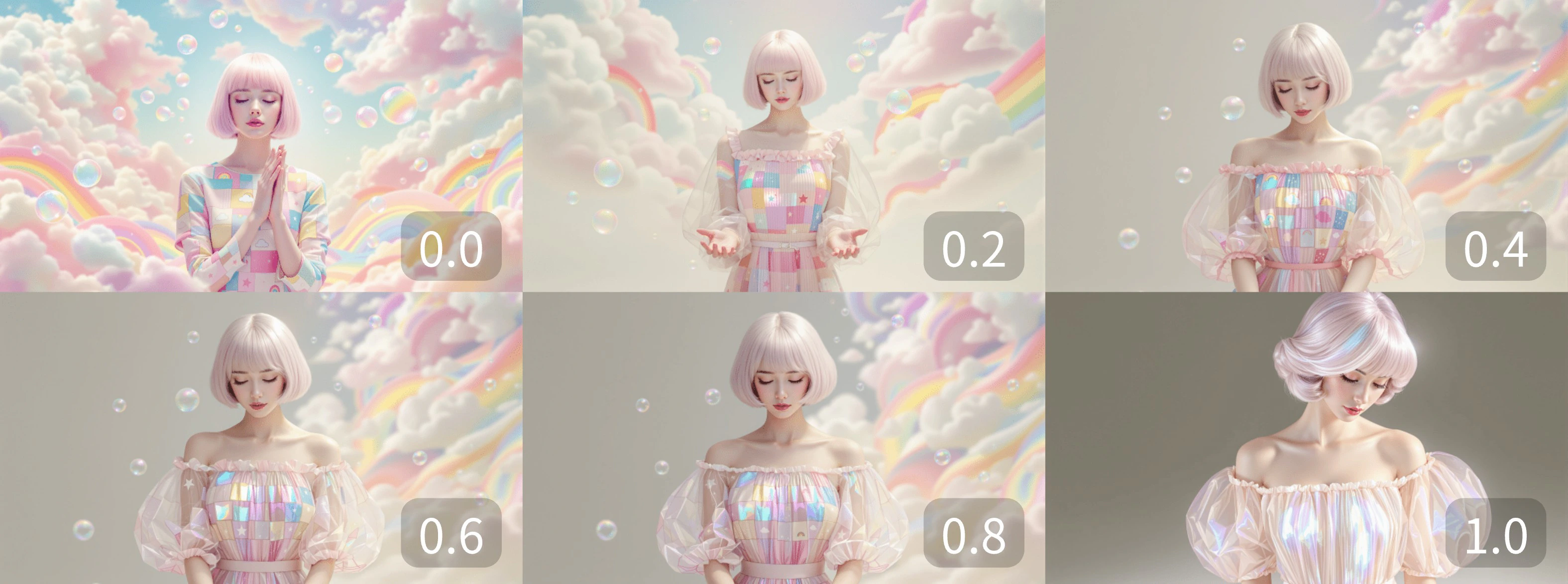
When adding animage_prompt to the node input, the output will blend features from the input image (Remix). The image_prompt_strength value affects the blend ratio: higher values make the output more similar to the input image.
1. Download Workflow File
Download and drag the following file into ComfyUI, or right-click the purple node in the Text-to-Image workflow and setmode to always to enable image_prompt input:
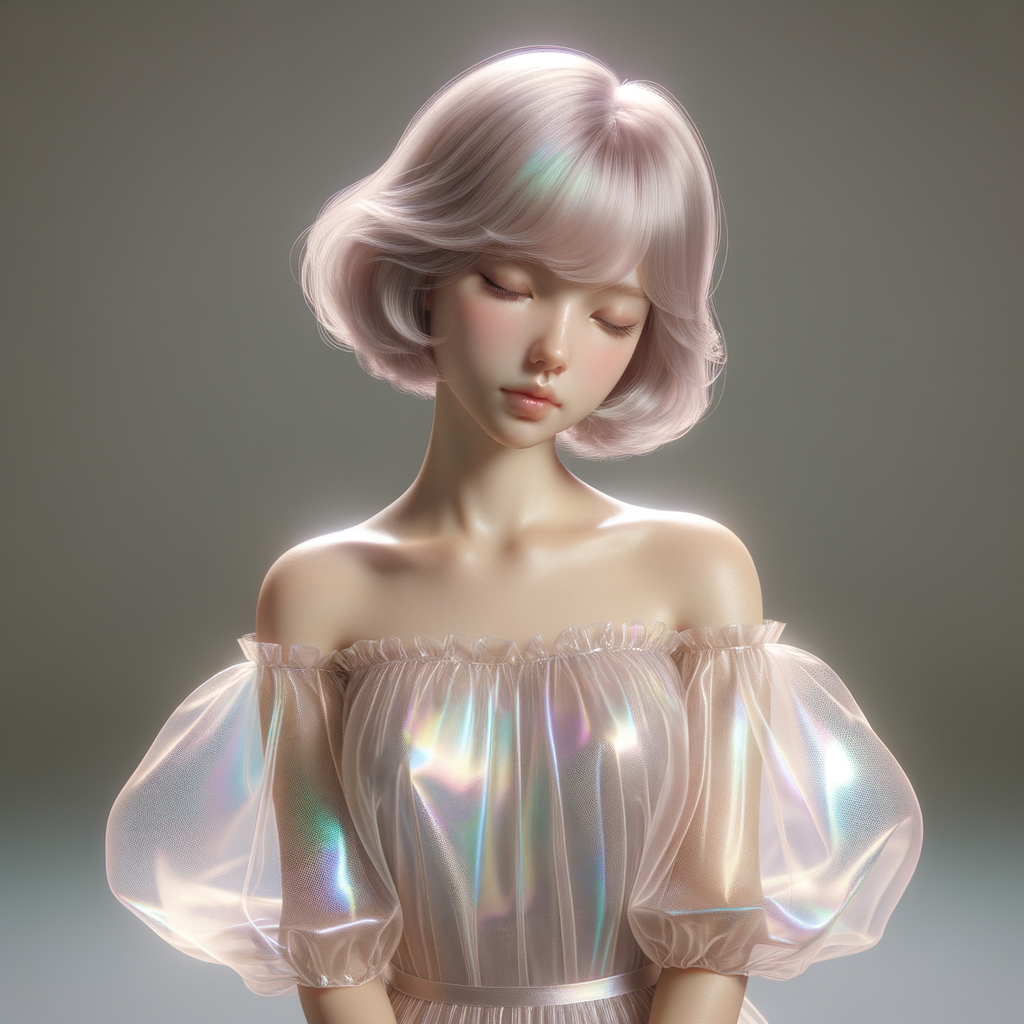
 We’ll use this image as input:
2. Complete the Workflow Steps
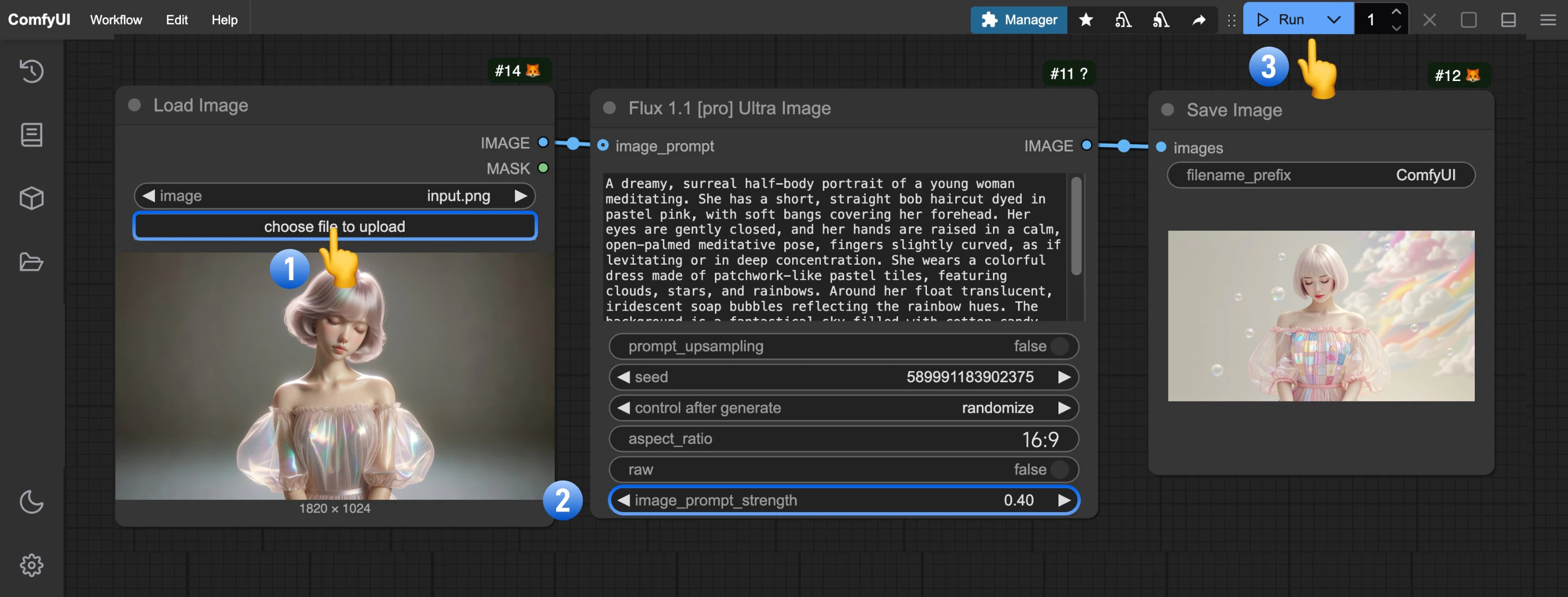
- Click Upload on the
Load Imagenode to upload your input image - (Optional) Adjust
image_prompt_strengthinFlux 1.1 [pro] Ultra Imageto change the blend ratio - Click
Runor use shortcutCtrl(cmd) + Enterto generate the image - After the API returns results, view the generated image in the
Save Imagenode. Images are saved to theComfyUI/output/directory
image_prompt_strength values: