ComfyUI Desktop is a standalone installation version that can be installed like regular software. It supports quick installation and automatic configuration of the Python environment and dependencies, and supports one-click import of existing ComfyUI settings, models, workflows, and files. You can quickly migrate from an existing ComfyUI Portable version to the Desktop version. ComfyUI Desktop is an open source project, please visit the full code here ComfyUI Desktop hardware requirements:Documentation Index
Fetch the complete documentation index at: https://dripart-mintlify-e28287af.mintlify.app/llms.txt
Use this file to discover all available pages before exploring further.
- NVIDIA GPU
ComfyUI Desktop (Windows) Download
Please click the button below to download the installation package for Windows ComfyUI DesktopDownload for Windows (NVIDIA)
ComfyUI Desktop Installation Steps
Double-click the downloaded installation package file, which will first perform an automatic installation and create a ComfyUI Desktop shortcut on the desktop
ComfyUI Desktop Initialization Process
Select GPU
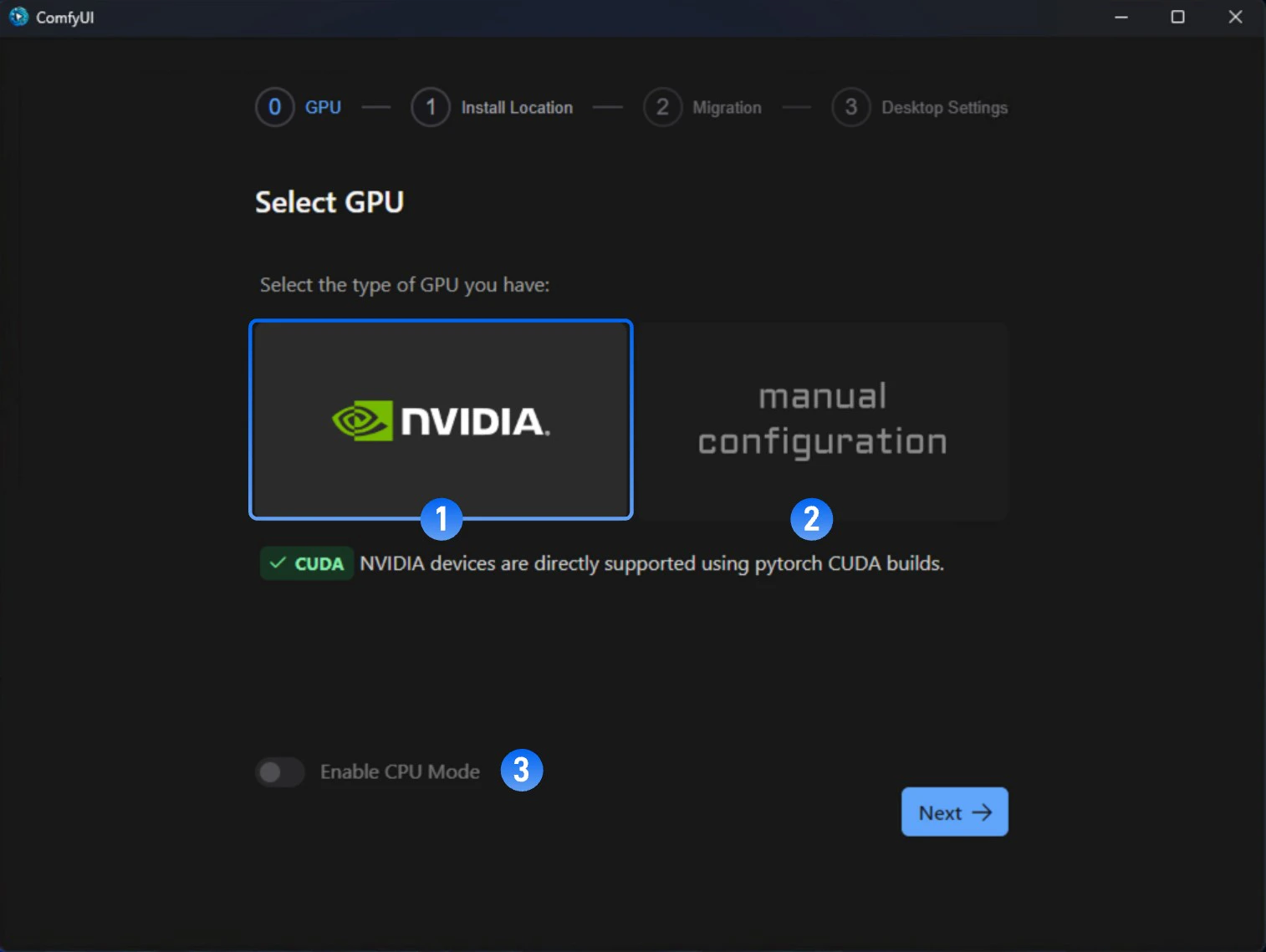
- Nvidia GPU (Recommended): Direct support for pytorch and CUDA
- Manual Configuration: You need to manually install and configure the python runtime environment. Don’t select this unless you know how to configure
- Enable CPU Mode: For developers and special cases only. Don’t select this unless you’re sure you need it
Install location
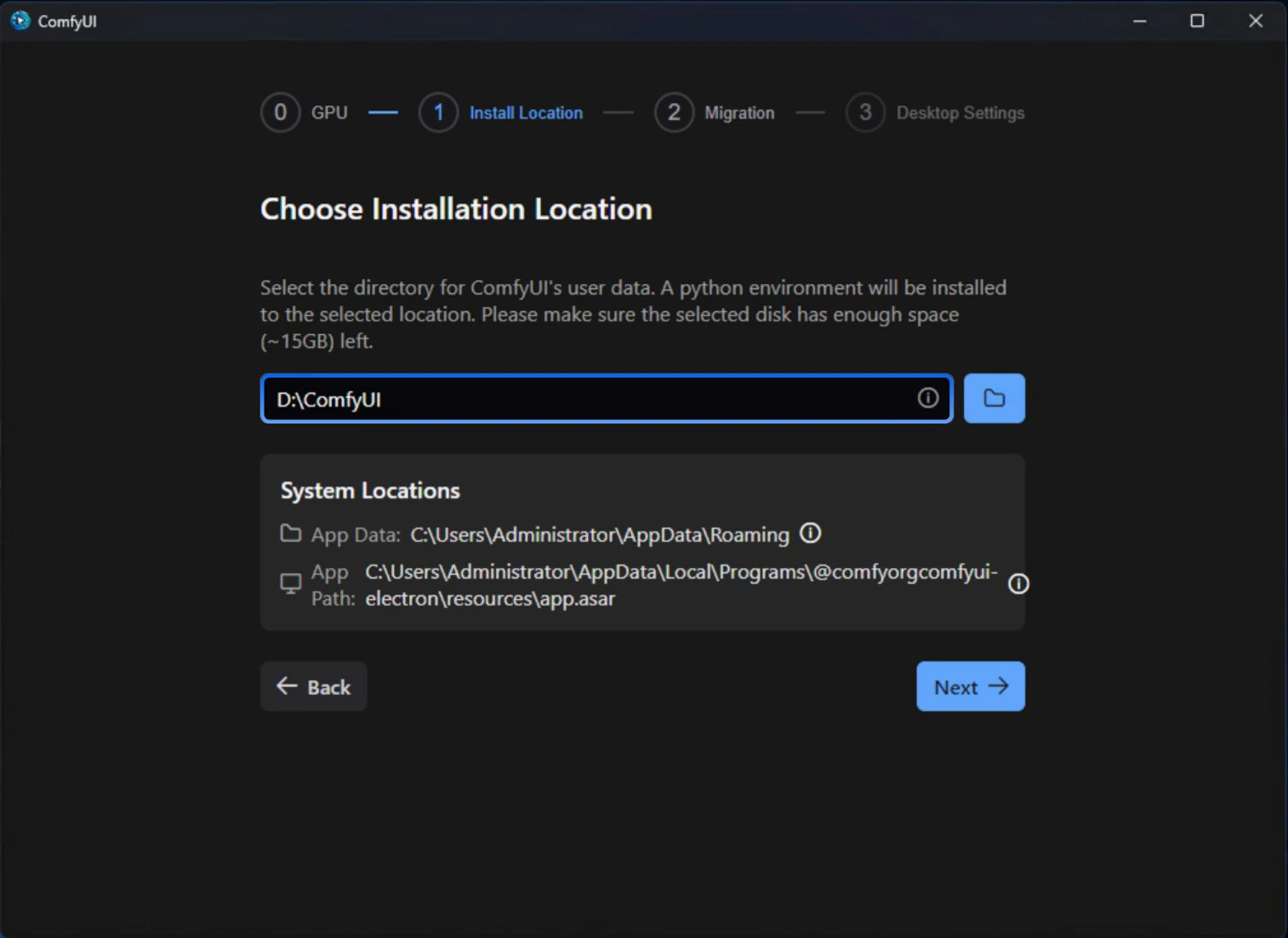
- Python Environment
- Models Model Files
- Custom Nodes Custom Nodes
- Please select a solid-state drive as the installation location, which will increase ComfyUI’s performance when accessing models.
- Please create a separate empty folder as the ComfyUI installation directory
- Please ensure that the corresponding disk has at least around 15G of disk space to ensure the installation of ComfyUI Desktop
Not all files are installed in this directory, some files will still be installed on the C drive, and if you need to uninstall in the future, you can refer to the uninstallation section of this guide to complete the full uninstallation of ComfyUI Desktop
Migrate from Existing Installation (Optional)
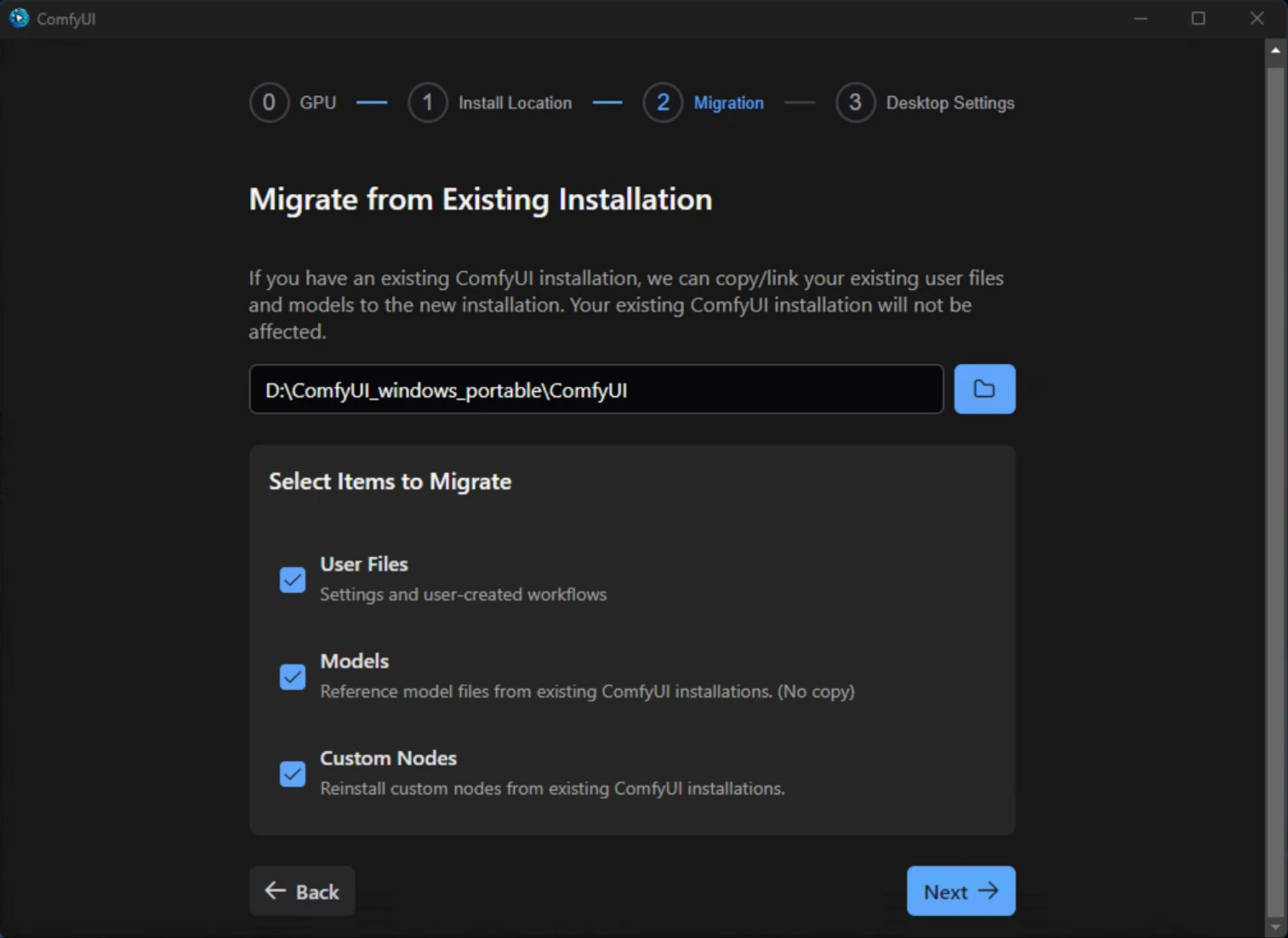
- User Files
- Models: Will not be copied, only linked with desktop version
- Custom Nodes: Nodes will be reinstalled
Desktop Settings
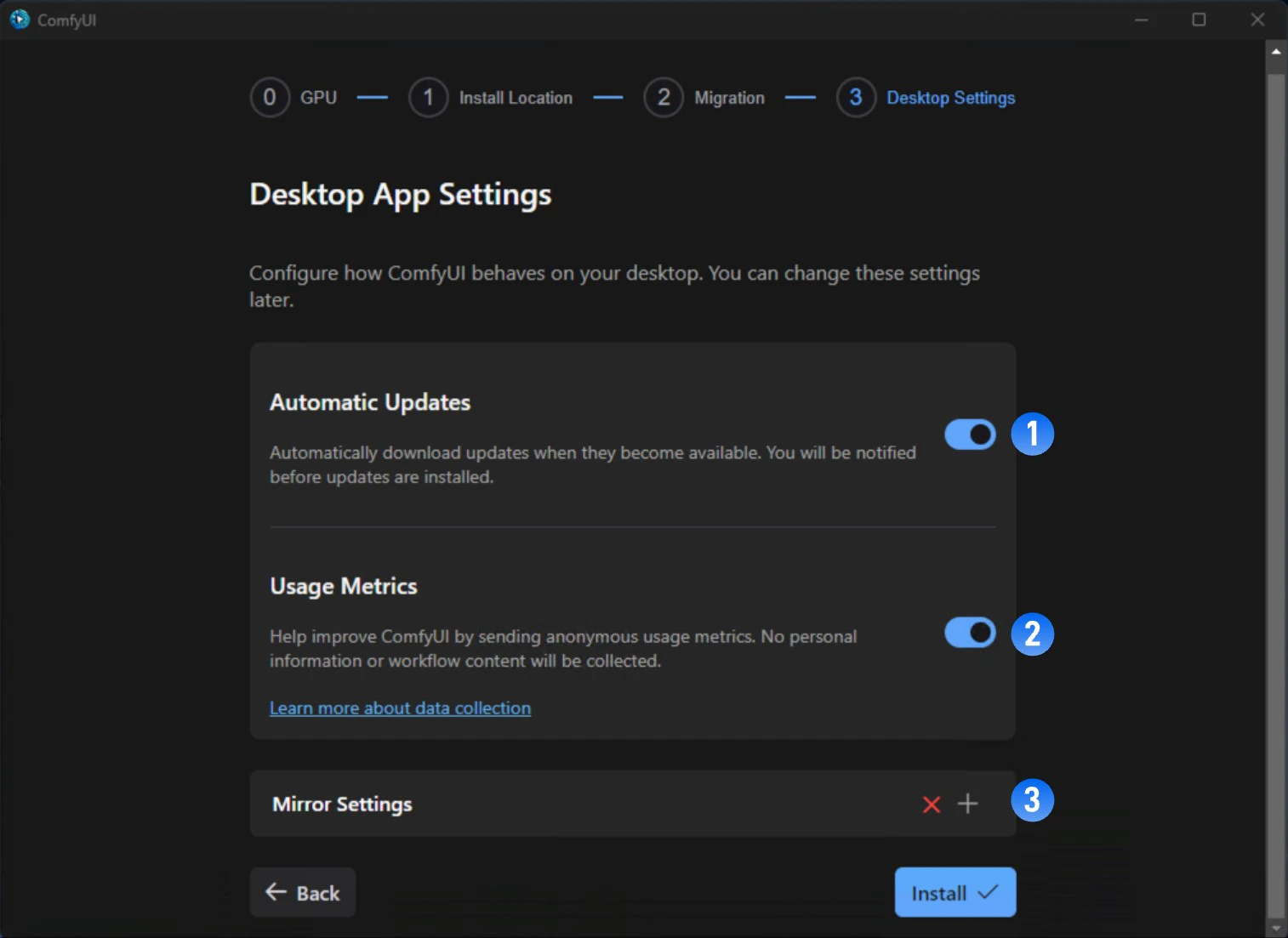
- Automatic Updates: Whether to set automatic updates when ComfyUI updates are available
- Usage Metrics: If enabled, we will collect anonymous usage data to help improve ComfyUI
- Mirror Settings: Since the program needs internet access to download Python and complete environment installation, if you see a red ❌ during installation indicating this may cause installation failure, please follow the steps below
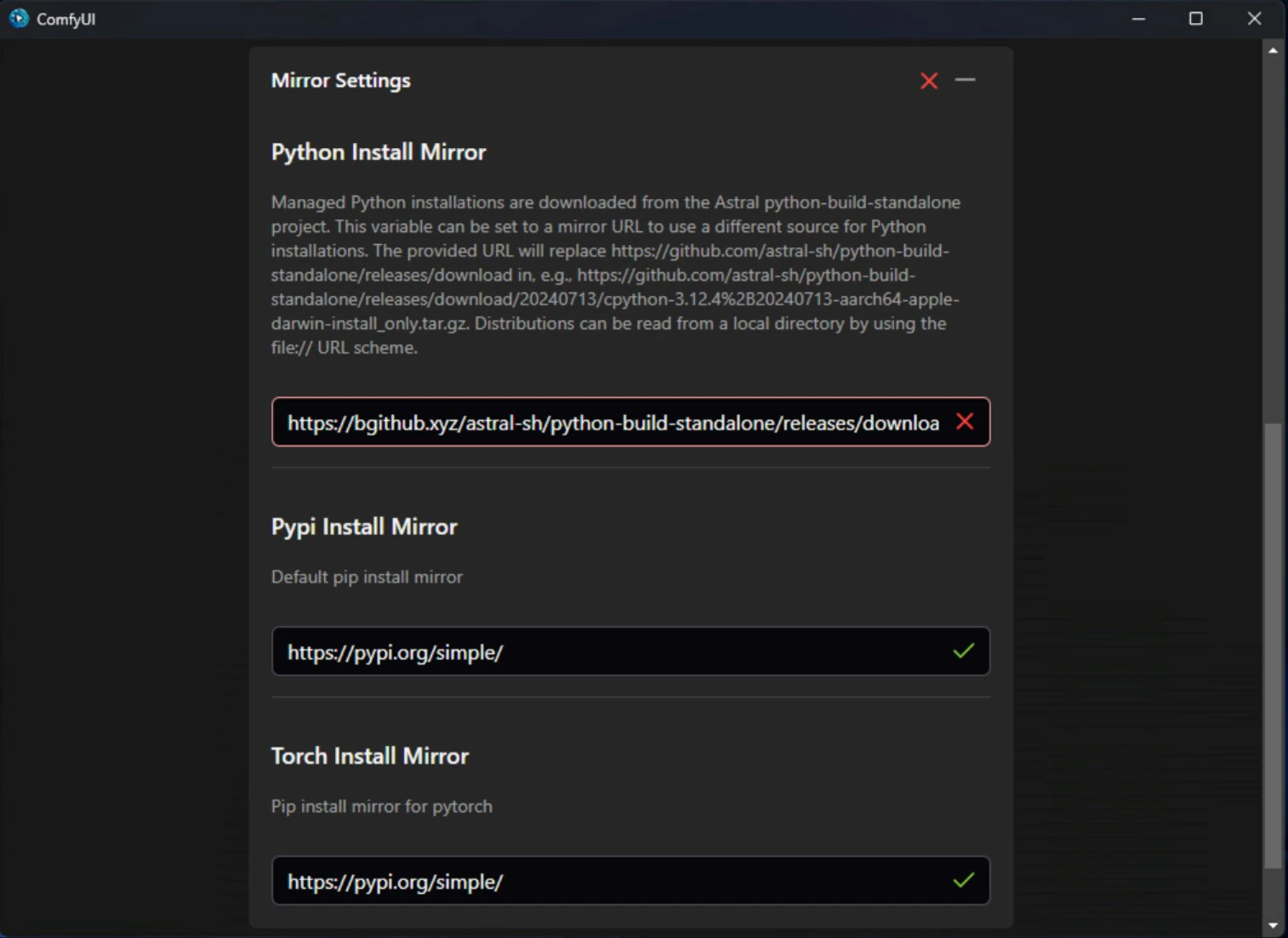
Python Installation Mirror
If the default mirror is unavailable, please try using the mirror below.python-build-standalone repository.PyPI Mirror
- Alibaba Cloud: https://mirrors.aliyun.com/pypi/simple/
- Tencent Cloud: https://mirrors.cloud.tencent.com/pypi/simple/
- University of Science and Technology of China: https://pypi.mirrors.ustc.edu.cn/simple/
- Shanghai Jiao Tong University: https://pypi.sjtu.edu.cn/simple/
Torch Mirror
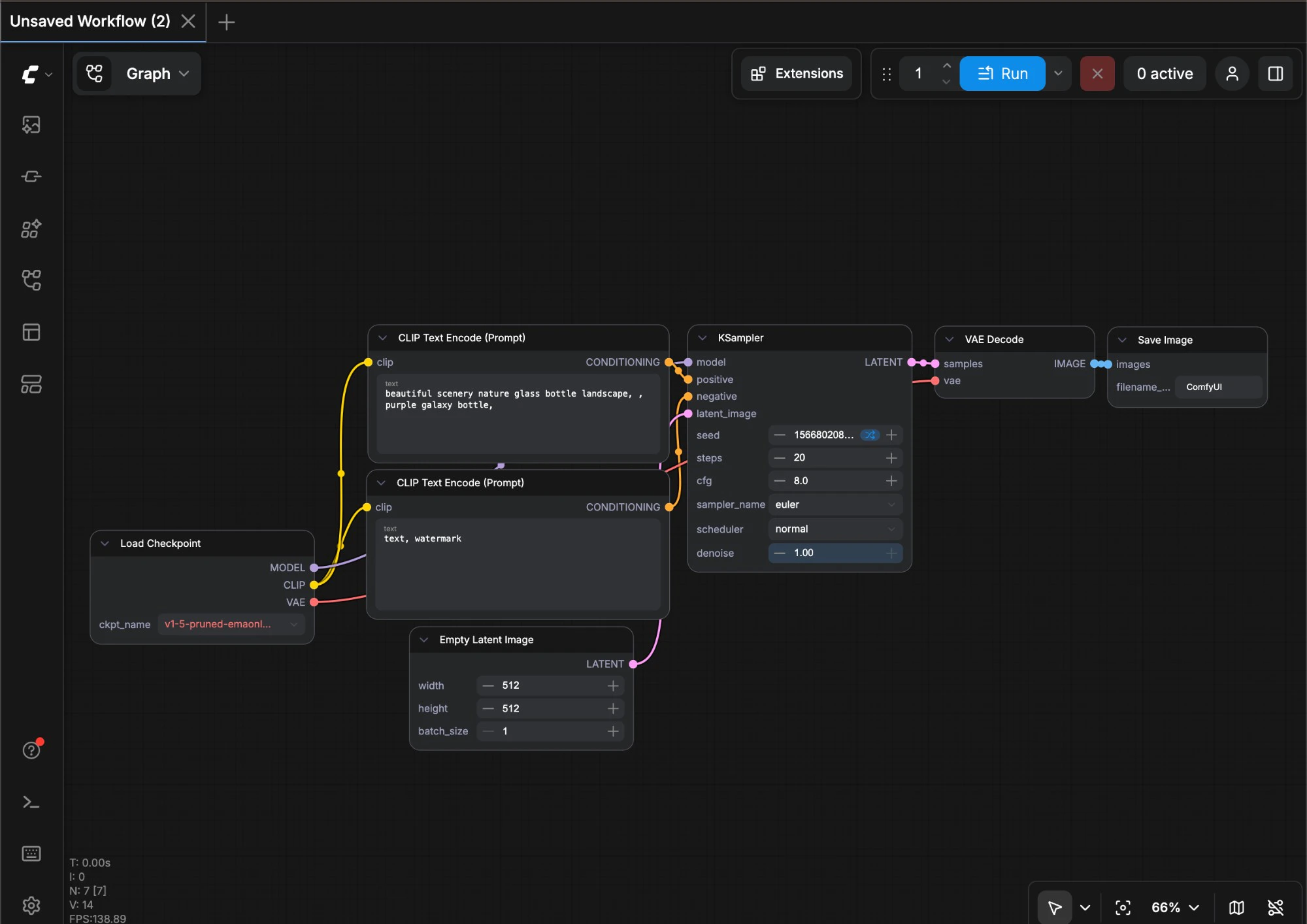
Important: Do not modify the resource/ComfyUI folder
First Image Generation
After successful installation, you can refer to the section below to start your ComfyUI journey~First Image Generation
This tutorial will guide you through your first model installation and text-to-image generation
How to Update ComfyUI Desktop
Currently, ComfyUI Desktop updates use automatic detection updates, please ensure that automatic updates are enabled in the settings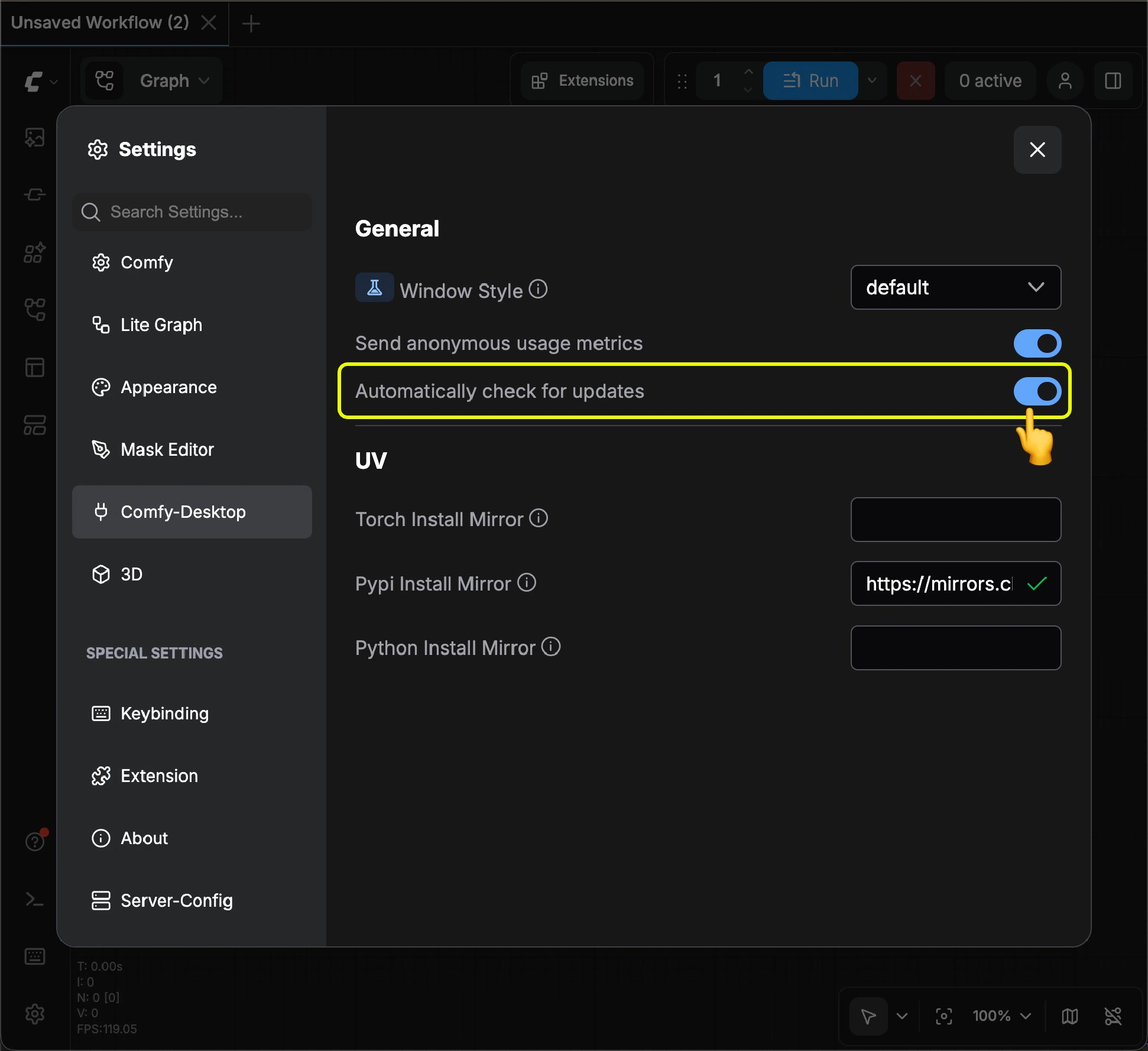
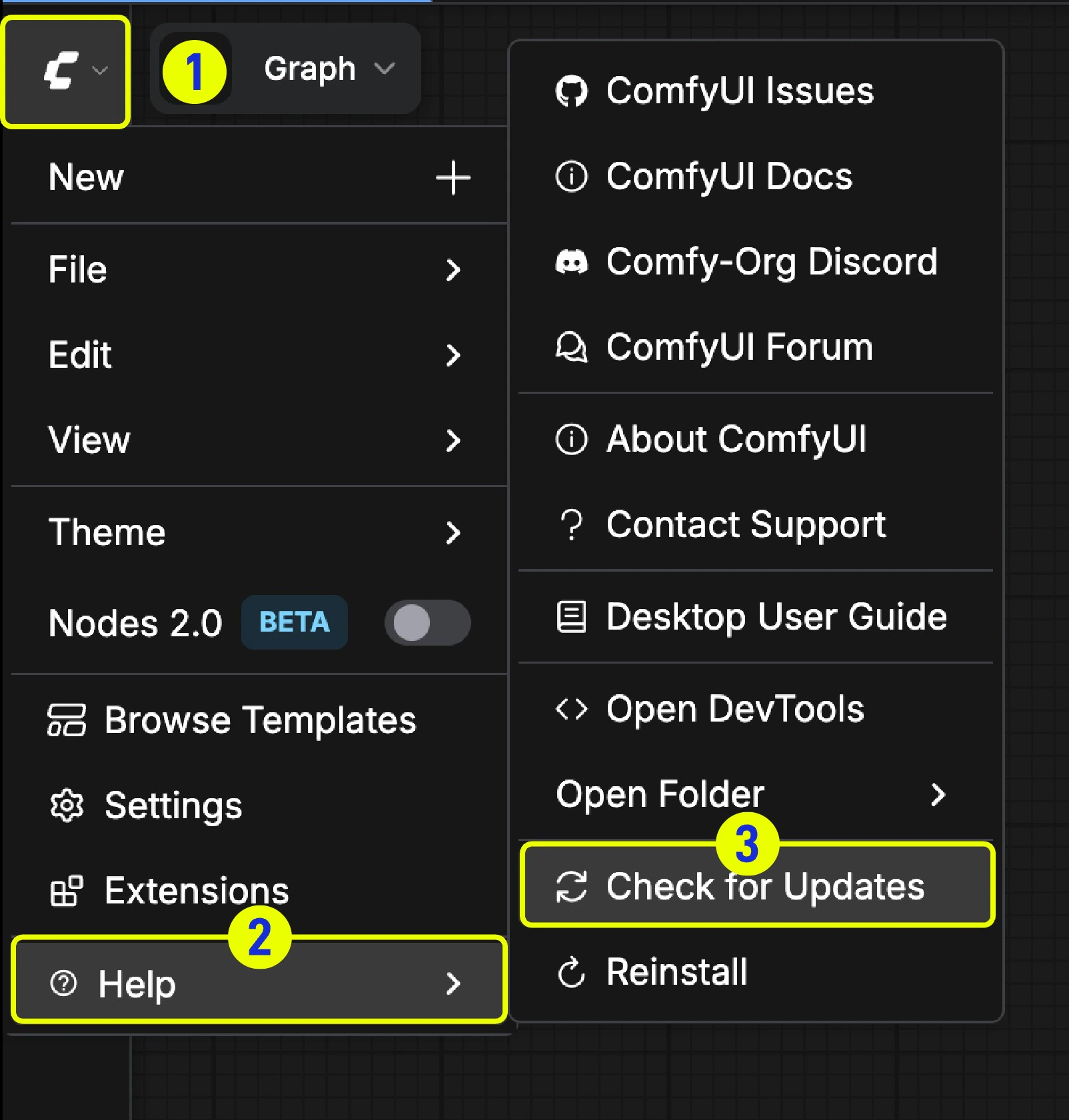
Menu —> Help —> Check for Updates
Adding Extra Model Paths
If you want to manage your model files outside ofComfyUI/models, you may have the following reasons:
- You have multiple ComfyUI instances and want them to share model files to save disk space
- You have different types of GUI programs (such as WebUI) and want them to use the same model files
- Model files cannot be recognized or found
extra_model_paths.yaml configuration file
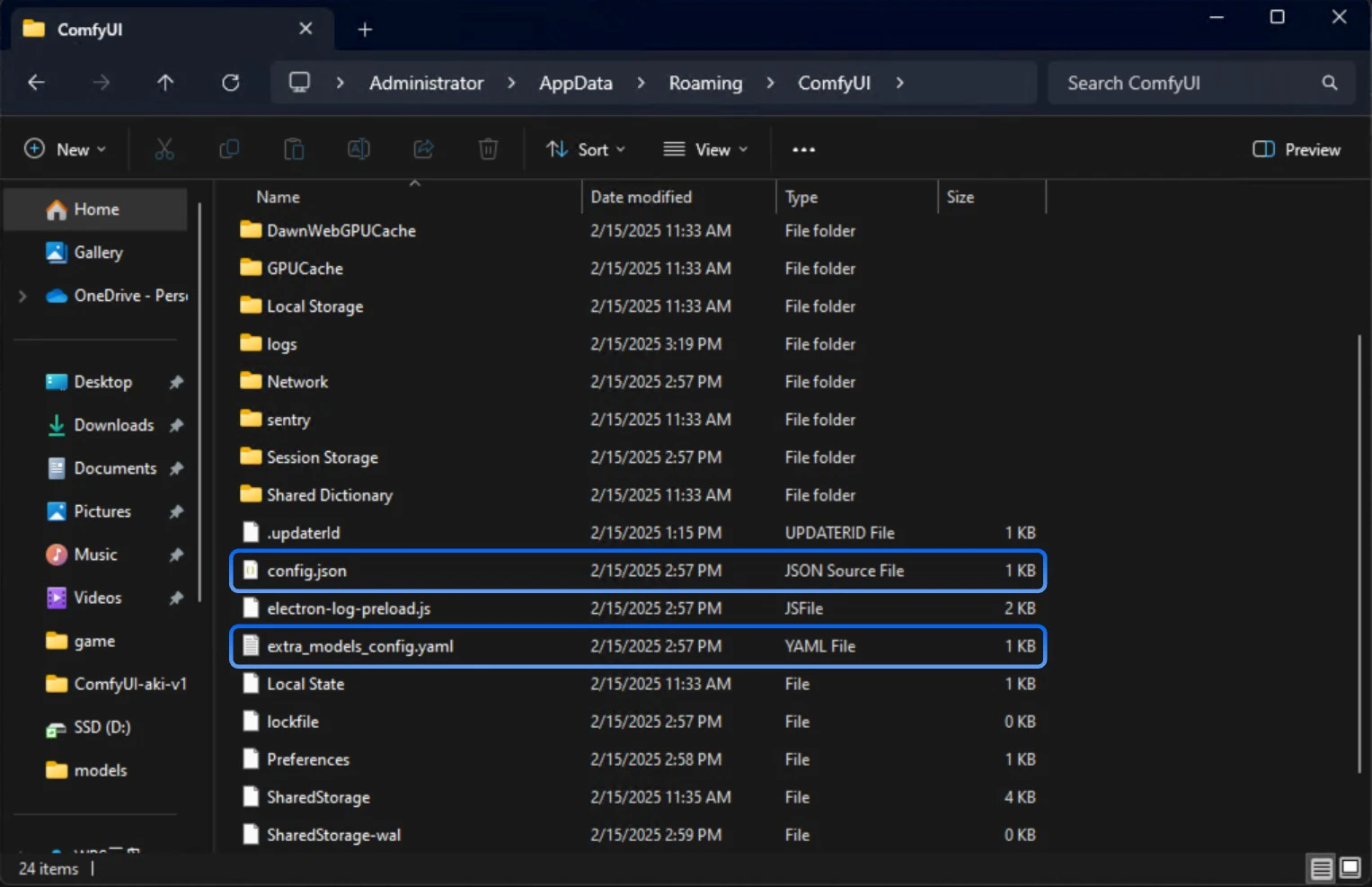
Open Config File
- Portable/Manual Install
- ComfyUI Desktop
For the ComfyUI version such as portable and manual, you can find an example file named Copy and rename it to
extra_model_paths.yaml.example in the root directory of ComfyUI:extra_model_paths.yaml for use. Keep it in ComfyUI’s root directory at ComfyUI/extra_model_paths.yaml.
You can also find the config example file here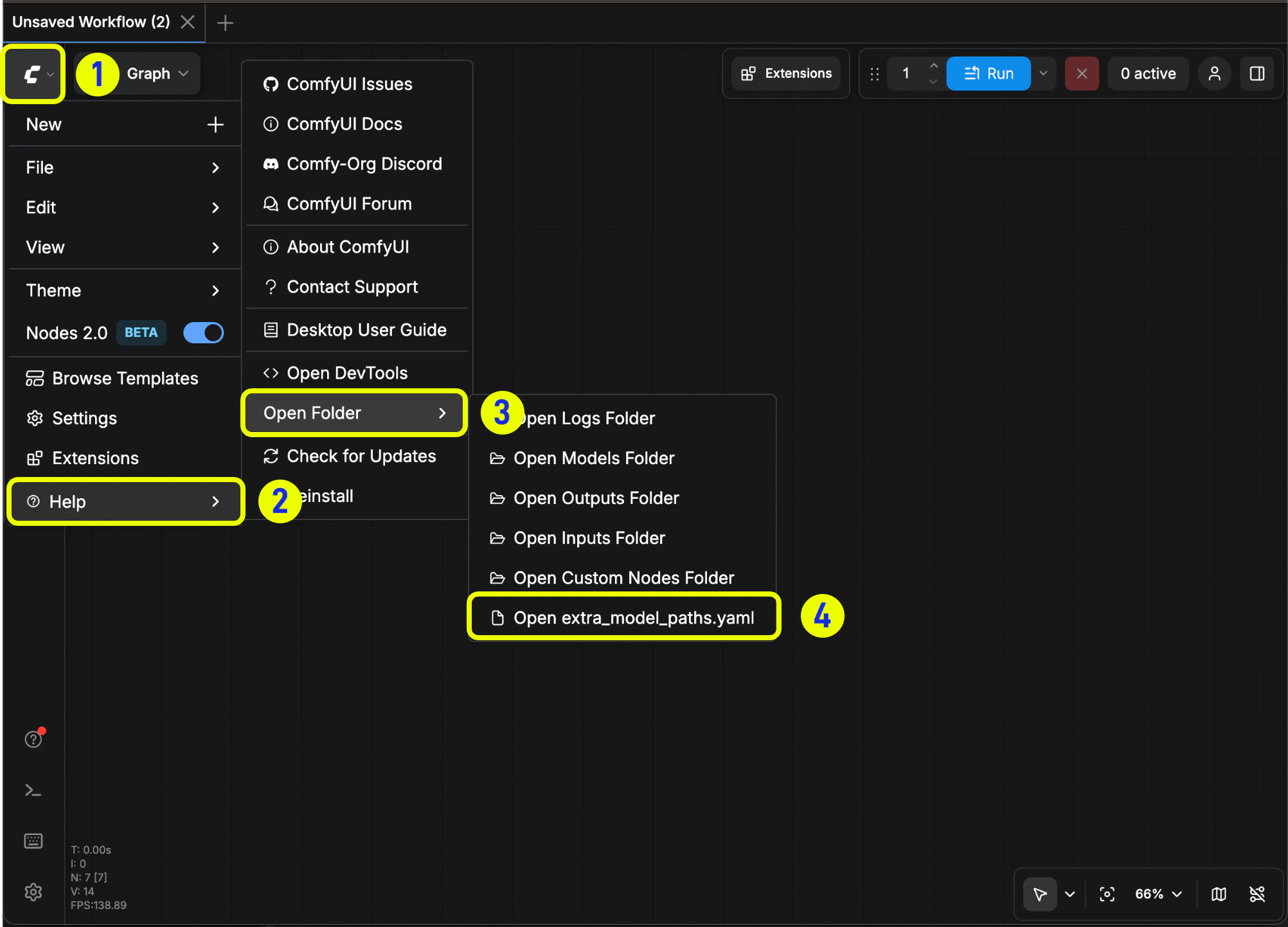
Example Structure
Suppose you want to add the following model paths to ComfyUI:extra_model_paths.yaml file like below to let ComfyUI recognize the model paths on your device:
D:\stable-diffusion-webui\, you can modify the corresponding configuration to
Add Extra Custom Nodes Path
Besides adding external models, you can also add custom nodes paths that are not in the default path of ComfyUI Below is a simple configuration example (MacOS), please modify it according to your actual situation and add it to the corresponding configuration file, save it and restart ComfyUI for the changes to take effect:Desktop Python Environment
The desktop installation will create a Python virtual environment in your chosen installation directory, typically a hidden.venv folder.
If you need to handle dependencies for ComfyUI plugins, you’ll need to do so within this environment. Using the system command line directly risks installing dependencies to the system environment, so please follow the instructions below to activate the appropriate environment.
How to use the Desktop Python environment?
- Desktop (Recommended)
- Terminal
You can use the built-in terminal in the desktop app to access the Python environment.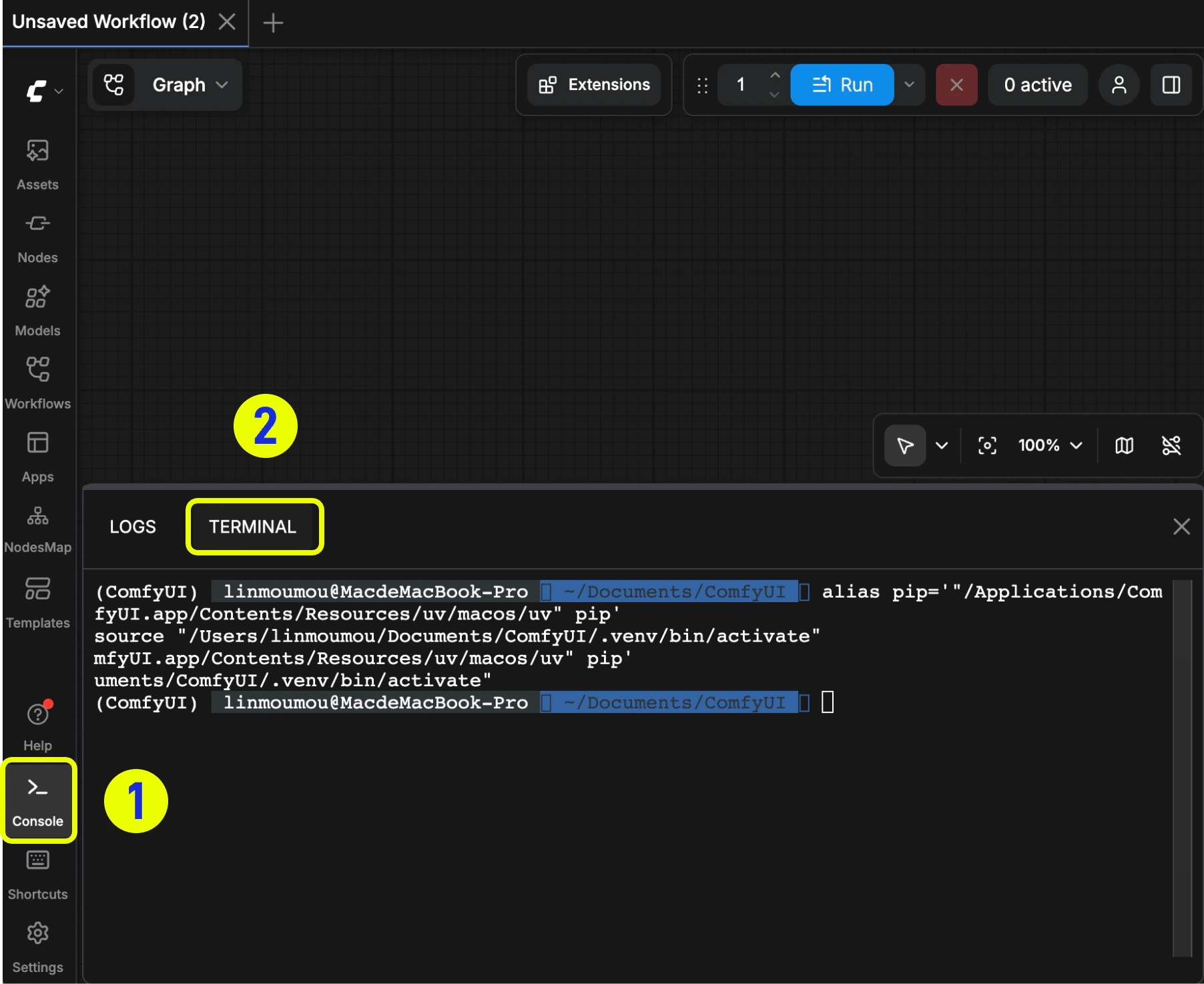
- Click the icon in the menu bar to open the bottom panel
- Click
Terminalto open the terminal - If you want to check the Python installation location for the corresponding environment, you can use the following command
- Windows
- macOS
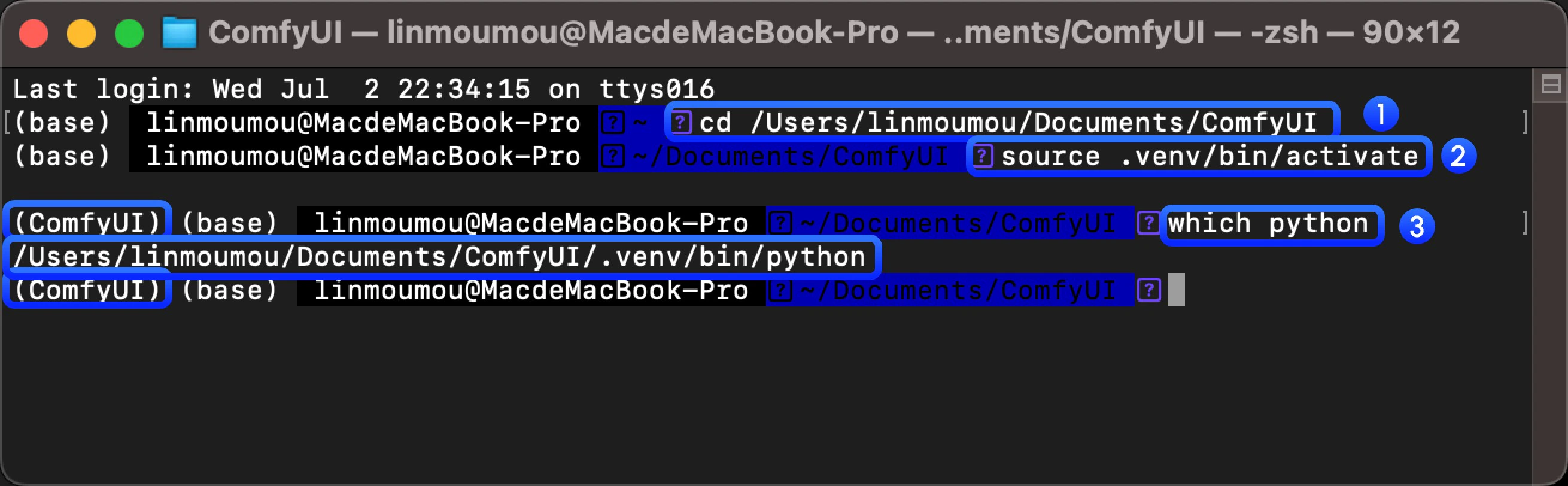
How to Uninstall ComfyUI Desktop
For ComfyUI Desktop you can use the system uninstall function in Windows Settings to complete software uninstallation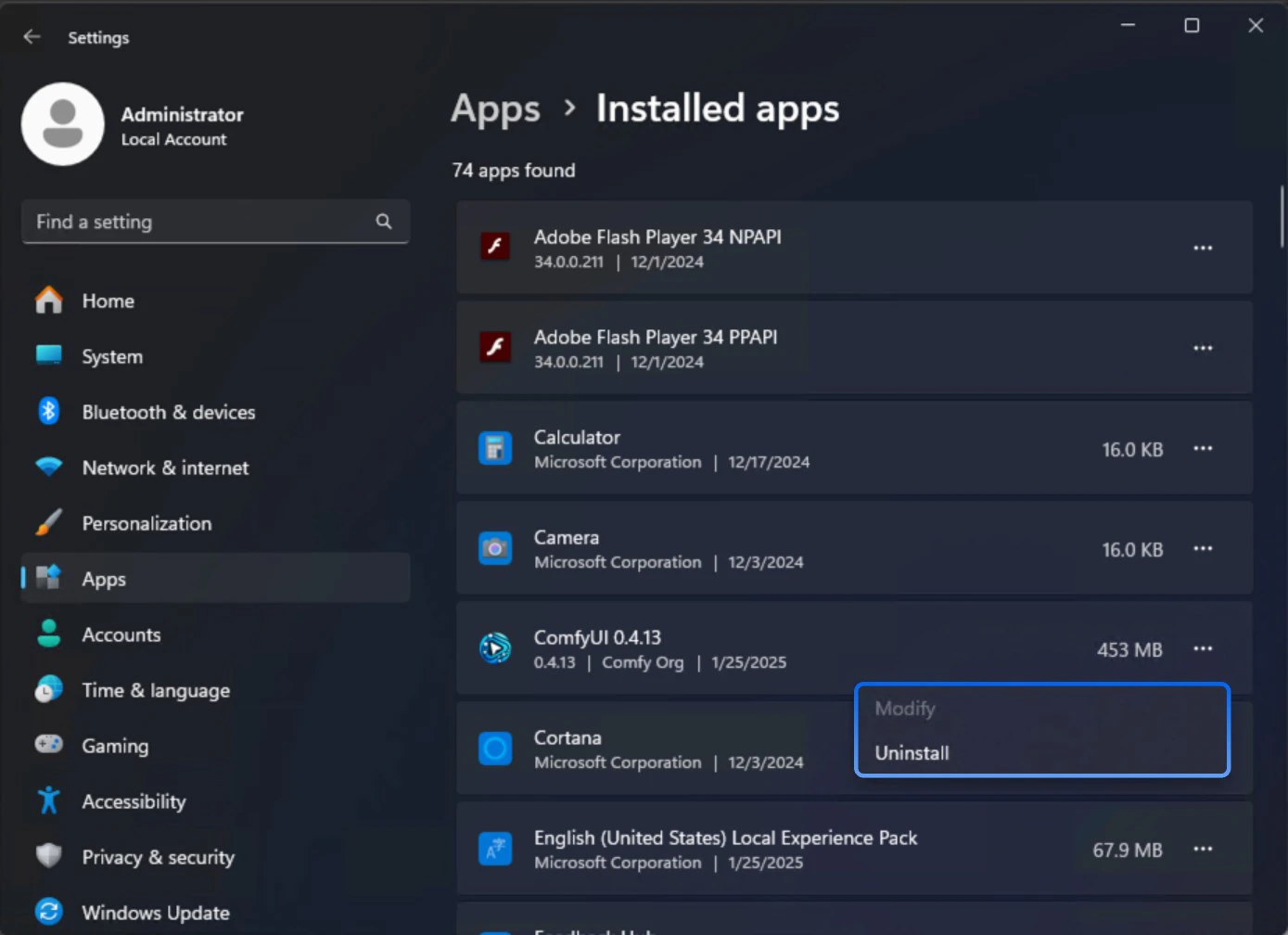
- C:\Users<YOUR_USERNAME>\AppData\Local@comfyorgcomfyui-electron-updater
- C:\Users<YOUR_USERNAME>\AppData\Local\Programs@comfyorgcomfyui-electron
- C:\Users<YOUR_USERNAME>\AppData\Roaming\ComfyUI
- models files
- custom nodes
- input/output directories
Troubleshooting
Display unsupported devices
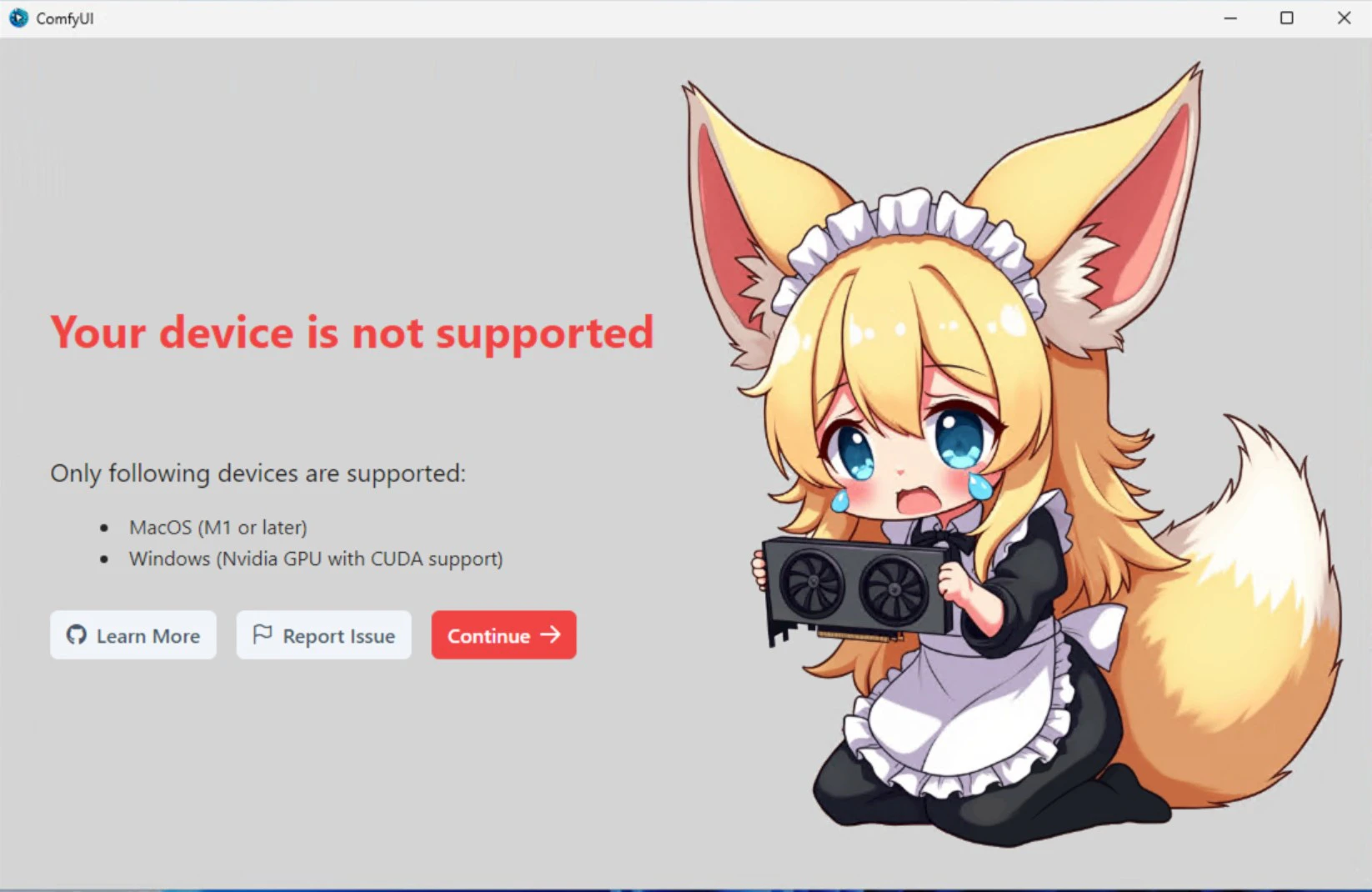
- Please switch to a supported device
- Or consider using ComfyUI Portable or through manual installation to use ComfyUI
Antivirus flags uv.exe as malicious
ComfyUI Desktop bundles uv (from Astral) to manage the Python environment. Some antivirus products — including 360 Total Security, Windows Defender, BitDefender, and DeepInstinct — occasionally flag uv.exe as malicious. This is a known false positive affecting uv itself, not ComfyUI.
Symptoms:
- Antivirus quarantines or deletes
uv.exeduring installation or updates - Installation fails partway through Python environment setup
- “Python environment failed to install” or similar errors after antivirus warnings
- Your selected ComfyUI install directory (chosen during the installation steps)
C:\Users\<YOUR_USERNAME>\AppData\Local\Programs\@comfyorgcomfyui-electronC:\Users\<YOUR_USERNAME>\AppData\Roaming\ComfyUI
uv project — see astral-sh/uv#1587, #10079, #12621, and #15011.
Error identification
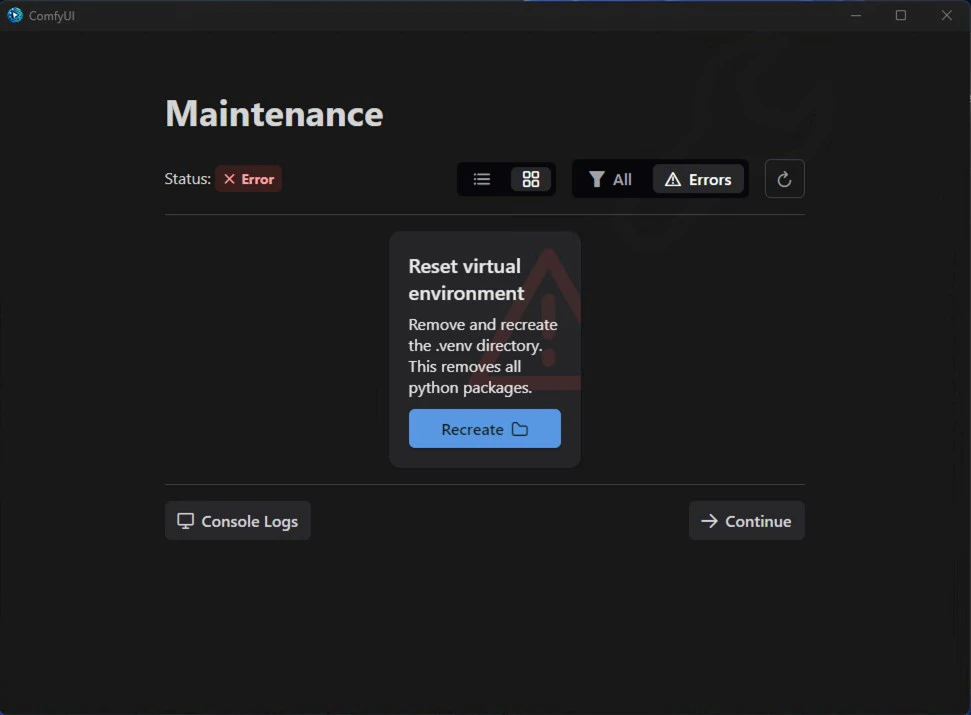
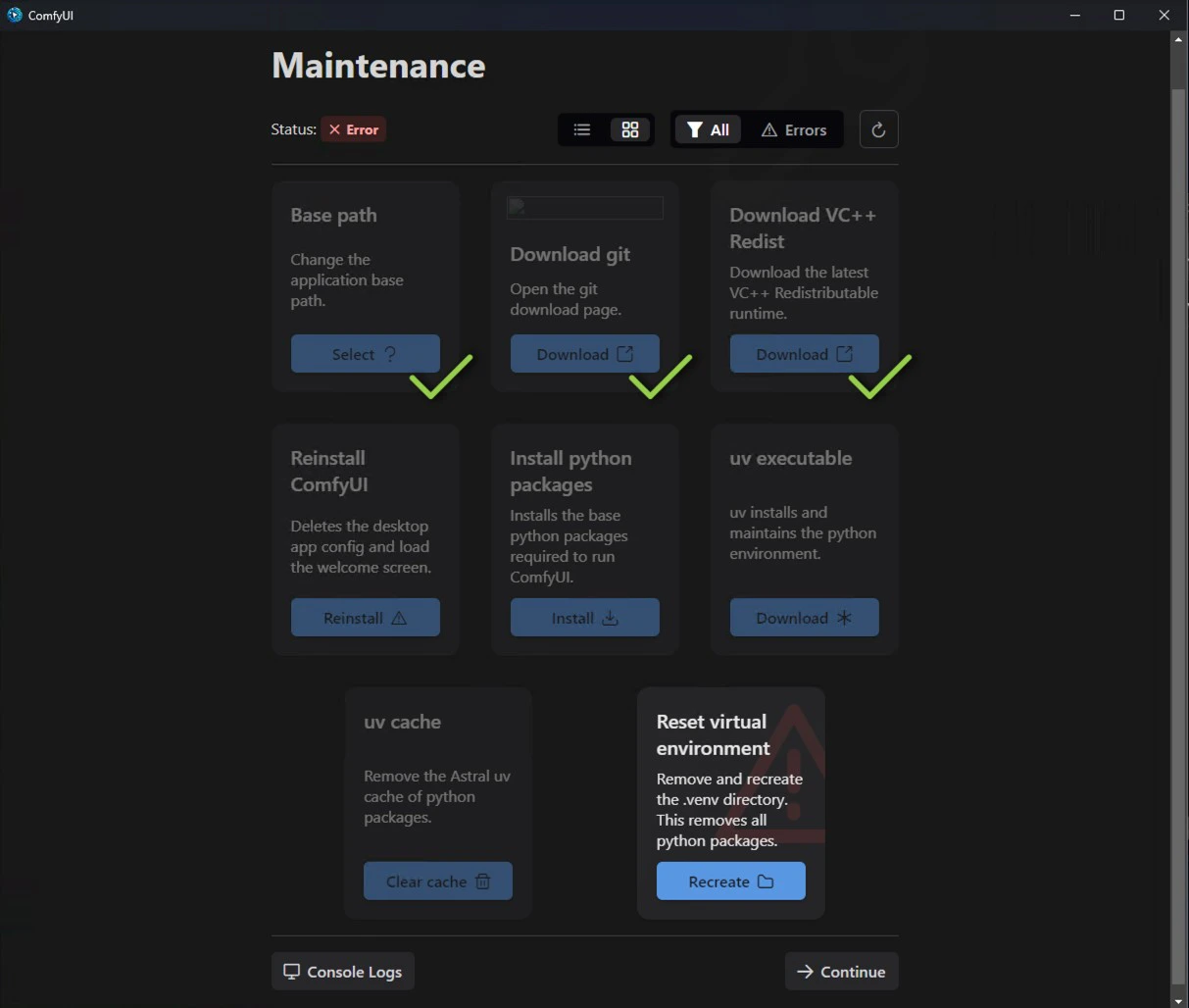
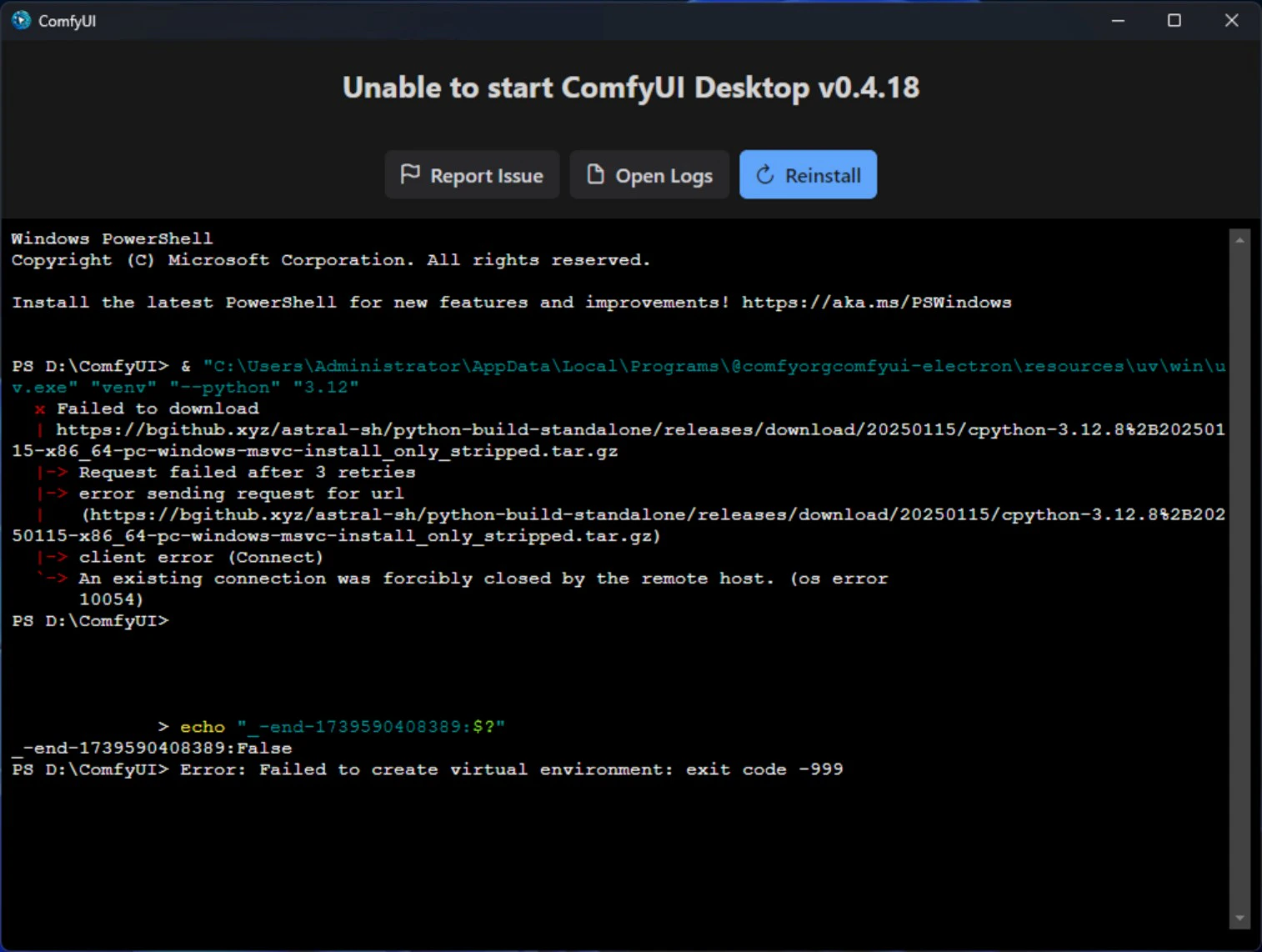
If installation fails, you should see the following screen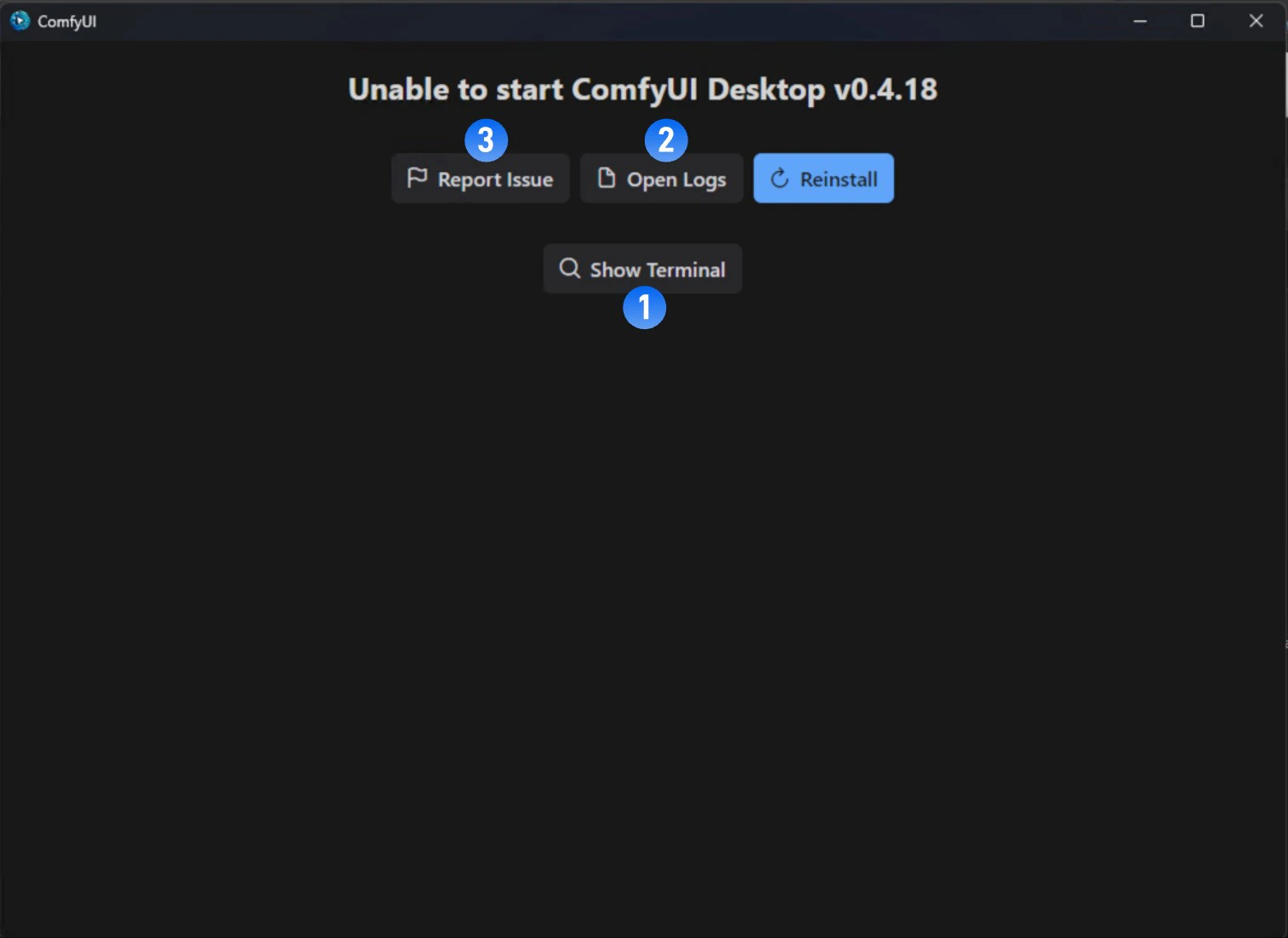
- Click
Show Terminalto view error output - Click
Open Logsto view installation logs - Visit official forum to search for error reports
- Click
Reinstallto try reinstalling
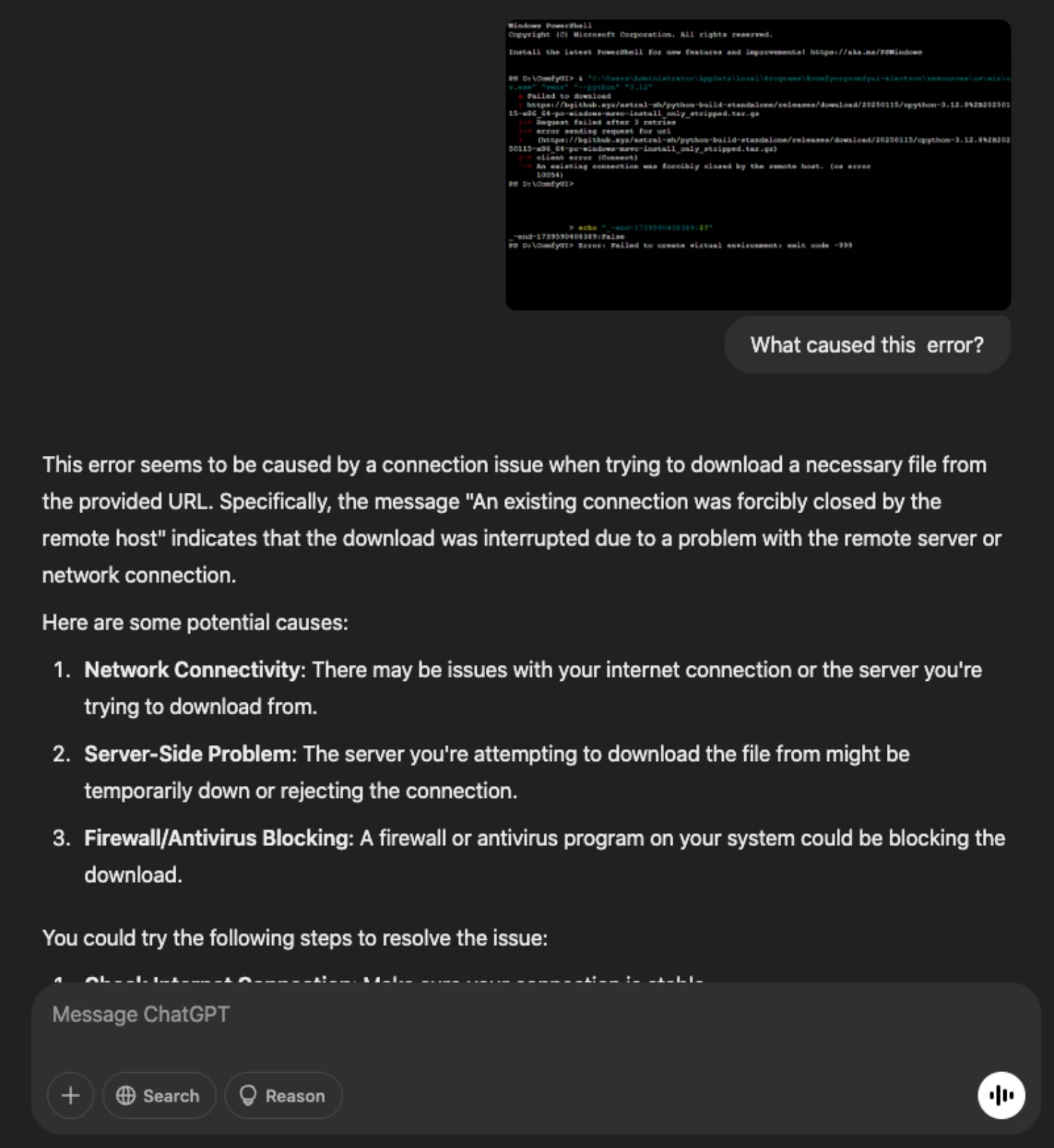
Feedback Installation Failure
If you encounter any errors during installation, please check if there are similar error reports or submit errors to us through:- Github Issues: https://github.com/Comfy-Org/desktop/issues
- Comfy Official Forum: https://forum.comfy.org/
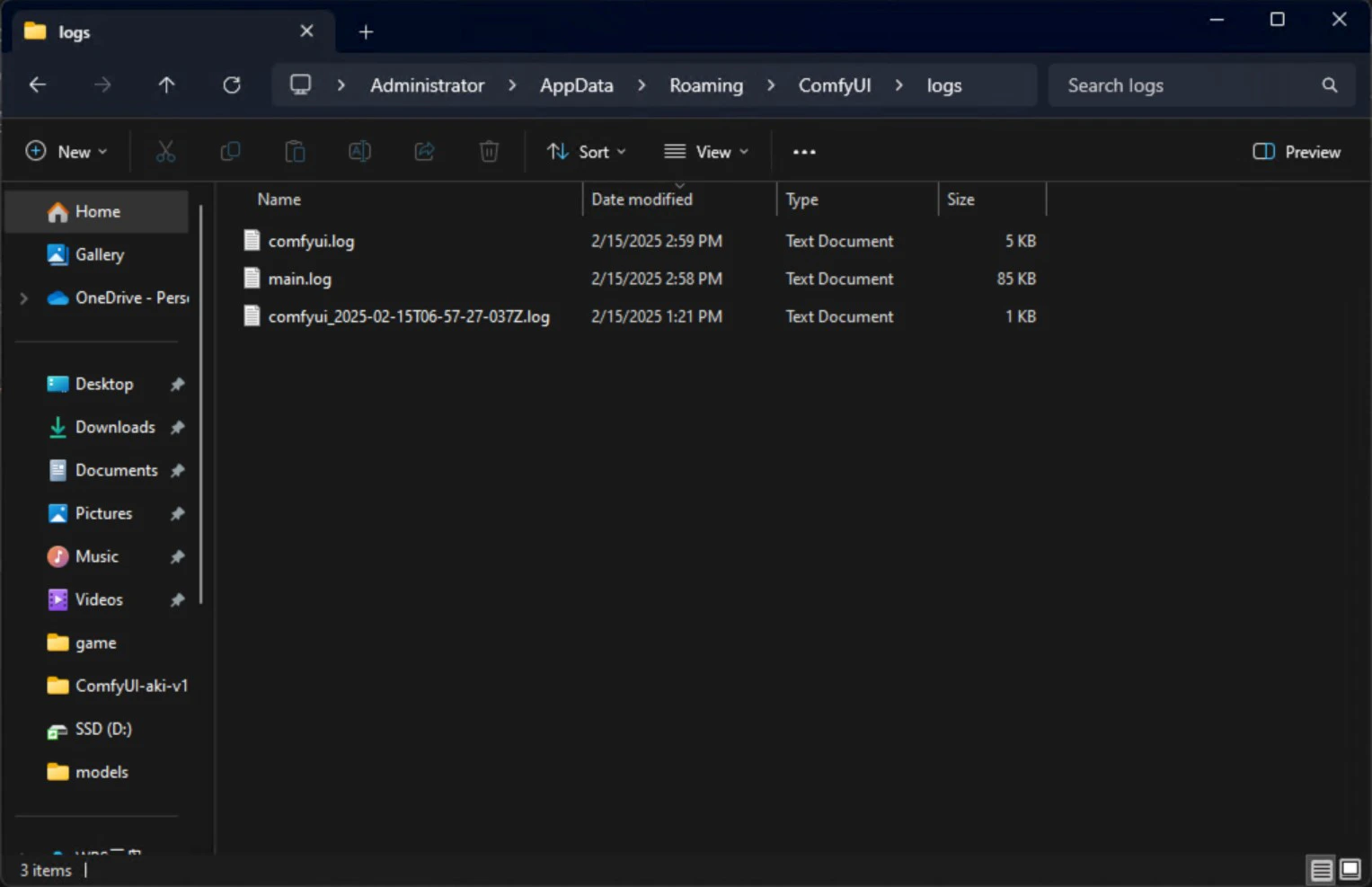
- Log Files
| Filename | Description | Location |
|---|---|---|
| main.log | Contains logs related to desktop application and server startup from the Electron process | |
| comfyui.log | Contains logs related to ComfyUI normal operation, such as core ComfyUI process terminal output |
- Configuration Files
| Filename | Description | Location |
|---|---|---|
| extra_model_paths.yaml | Contains additional paths where ComfyUI will search for models and custom nodes | |
| config.json | Contains application configuration. This file should not be edited directly |